Tag: Windows 11

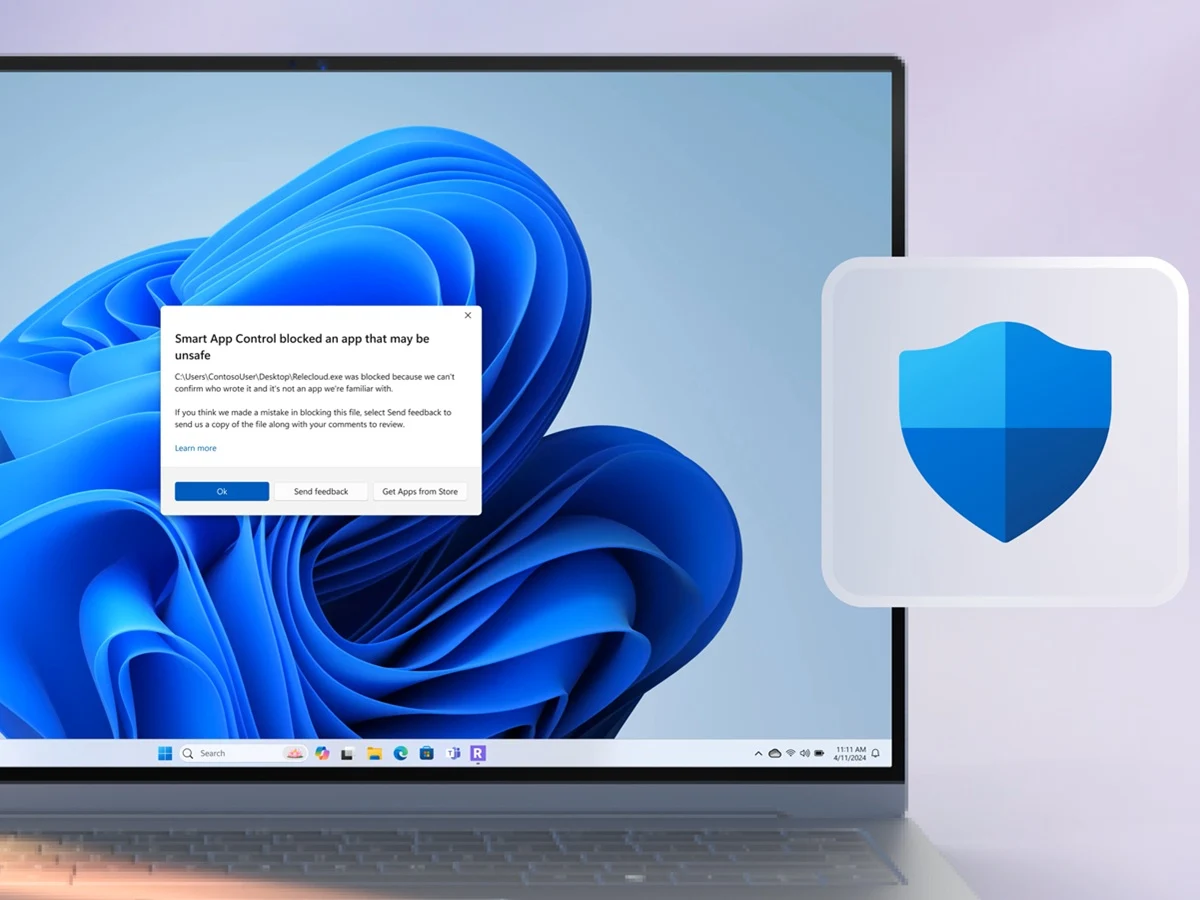
  • Windows 11 KB5095051 update breaks Office integration

    Windows 11 KB5095051 update breaks Office integration

    Key Takeaway

    – KB5095051 causes OLE automation failures, crashing Office apps launched from third-party business software.
    – Affected systems include accounting, document management, and healthcare platforms (e.g., CCH, Zotero, Dentrix).
    – Three distinct regressions require fixes: OLE trust validation, deployment media error 0xc0430001, and broken Recycle Bin prompts.
    – Temporary workarounds include opening documents directly in standalone Office apps and manually copying boot.stl for image deployments.
    – Organizations can contact Microsoft Support for Business to obtain a dedicated mitigation patch.


    New Windows 11 Patch Causes Business Software Chaos

    The next major complication from Microsoft’s June 2026 patch cycle has arrived. The tech giant acknowledged a significant application compatibility flaw inside Windows 11 cumulative update KB5095051. Following deployment, enterprise administrators reported that crucial third-party business software is failing to launch Microsoft Office programs or open documents, leaving automated background integration workflows at a sudden standstill.

    Object Linking and Embedding Glitch Identified

    According to technical advisories on the Windows release health dashboard, the issue impacts applications utilizing Object Linking and Embedding (OLE) automation to call on the Microsoft Office suite. When a user tries to trigger Word, Excel, PowerPoint, or Access from inside an independent line-of-business platform, the Office application either fails to respond entirely or silently crashes.

    Security Overhaul Causes Dual Problems

    Administrators are tracking these symptoms along parallel tracks of an aggressive security overhaul. The dashboard lists the OLE glitch as an unintended Known Issue under active investigation. Meanwhile, new constraints on desktop.ini files are an intentional security choice to block Mark of the Web exploit vectors from remote sources. This hardening tweak has the side effect of breaking custom folder icons on network shares, rather than acting as the catalyst for the OLE breakdown.

    Business and Healthcare Sectors Hit Hard

    This platform regression paralyzes specialized software running automated reporting tools and Document Management Systems. Corporate platforms are taking the hardest hit, including accounting tools like CCH ProSystem fx Engagement and Workpaper Manager, alongside citation managers like Zotero. The disruption also ripples through the healthcare sector, affecting medical practice systems such as Dentrix and Softdent, leaving clinics unable to auto-generate patient charts.

    Three Code Regressions Needs Fixing

    To restore stability to build 28000.2269, Microsoft must address three distinct code regressions. First, engineers must fix inter-process communication trust validation so local apps can programmatically invoke the Office stack. Second, Microsoft needs to resolve a dynamic deployment media bug where updating managed images throws a 0xc0430001 error. Finally, a new June 19 glitch breaks Recycle Bin prompts, displaying raw internal file strings instead of human readable names.

    Temporary Workarounds for IT Teams

    While Microsoft designs a public fix, IT departments must rely on temporary workarounds. Users can bypass the integration bug by opening required documents directly within standalone Office applications. For image deployments, admins must manually copy the boot.stl file to the installation media EFI folder. Affected organizations can also contact Microsoft Support for Business to acquire a dedicated mitigation patch.

    • Microsoft.com/KB5095051
    • Windows Forum
    • Elevenforum.com/KB5095051
  • Windows 11 Xbox Mode: Less RAM, No Gaming Boost

    Key Takeaway

    – Xbox mode for Windows 11 shows no gaming performance improvement over standard mode.
    – It does reduce RAM usage (about 600 MB less), but this doesn’t translate to higher FPS.
    – The feature is a positive sign that Microsoft is taking competition from SteamOS and Linux gaming seriously.
    – Future development is uncertain due to Microsoft’s history of abandoning features.


    Xbox Mode for Windows 11 Hits a Performance Snag

    Pressured by the growing popularity of SteamOS and increasing fan outcry over Windows 11’s bloatware problem, Microsoft officially began rolling out “Xbox mode” for Windows 11 at the end of April. Xbox mode logs users into a controller-friendly UI that makes it easy for gamers to jump strait into their games. On top of this, Xbox mode aims to deliver better gaming performance by only running critical Windows processes and unloading things like the Windows Desktop to free up recources.

    Testing Reveals No Real Gains in Frame Rates

    Linus Tech Tips has tested the Windows 11 Xbox mode to see how big or little of a performance gain you can expect from enabling the Xbox Mode. The answer? Xbox mode appears to make no difference at all while gaming. across a variety of games tested at 1080p and 1440p, gaming on Windows 11 with and without Xbox mode yielded practically the same results.

    Consistent Results Across Multiple Titles

    For instance, LTT ran Forza Horizon 5 on a PC in and outside of Xbox mode. In both cases, the results were 1% Lows of 108/109 FPS and an average FPS of 123. LTT saw the same pattern in games like Cyberpunk 2077, F1 24, and Doom: The Dark Ages. This is dissapointing to see, as Xbox mode does reportedly use less RAM than the standard Windows 11 UI.

    RAM Usage Shows a Noticable Reduction

    For instance, LTT measured that Windows 11 used only 4,493 MB of RAM in Xbox mode and 5,101 MB running the Xbox App outside of Xbox mode. So, we can conjectur that either Xbox mode frees up negligible resources for them to make a difference, or the results are highly dependent on the game you are running. Whatever the case may be, it can be argued that the mere existance of Xbox mode is a good thing for Windows gamers.

    Microsoft’s Move Signals a Positive Shift

    It shows that Microsoft is taking the threat of Linux gaming and SteamOS seriously. Fingers crossed that Microsoft keeps on working on the feature and does not abandon it halfway. But it is Microsoft we are talking about. So, we never know what they are going to do next. The Asus ROG Ally features a 7-inch 1080p display, AMD Ryzen Z1 Extreme processor, 16GB LPDDR5 RAM, and a 512GB SSD for $699.99.


    Sources

  • Samsung Galaxy Book6 Edge: 18-Core ARM, 120Hz AMOLED

    Samsung Galaxy Book6 Edge: 18-Core ARM, 120Hz AMOLED

    Key Takeaway

    – Samsung Galaxy Book6 Edge is officially available, priced at $2,099.
    – Powered by a Qualcomm Snapdragon X2 Elite chip with 12 Oryon Prime cores (up to 4.7 GHz) and 6 Performance cores.
    – Features a 16-inch 2.8K AMOLED display with 120 Hz refresh rate and 500 nits brightness.
    – Offers up to 21 hours of battery life from a 61.8 Wh battery.
    – Includes USB 4.0, HDMI 2.1, Wi-Fi 7, Bluetooth 5.3, and a microSD slot.


    While the Galaxy Book6 Edge had already been listed by some retailers weeks ago, Samsung has confirmed via a press release that the notebook is now officially available. The Galaxy Book6 Edge is marketed as a slim yet powerful notebook with long battery life and a high-resolution AMOLED display.

    Core Specifications and Processing Power

    To achive this, Samsung relies on a Qualcomm Snapdragon X2 Elite (X2E-88-100) with twelve Oryon Prime cores featuring boost clock speeds of up to 4.7 GHz, as well as six Oryon Performance cores running at 3.4 GHz. It also comes with 16 GB of RAM and a 1 TB SSD. Aside from the fast ARM chip, the display is the highlight of the device, as Samsung has equipped it with a 16-inch AMOLED panel in a 16:10 aspect ratio, which achieves a resolution of 2,880 x 1,800 pixels, a refresh rate of 120 Hz, and a brightness of 500 nits.

    Physical Dimensions and Battery Life

    The notebook, which is 12.3 millimeters thick and weighs 1.55 kilograms, features a 61.8 Wh battery battery that is designed to provide up to 21 hours of battery life. With two USB 4.0 (USB-C) ports, a USB-A port, HDMI 2.1, a microSD slot, Wi-Fi 7, and Bluetooth 5.3, the Galaxy Book6 Edge offers excellent connectivity. A backlit keyboard with a numeric keypad, a large multi-touch trackpad, a fingerprint sensor, a 2-megapixel webcam, and Windows 11 round out the features.

    Pricing and Regional Availability

    The Samsung Galaxy Book6 Edge is now available on Samusng.com for $2.099. The notebook is available in the US exclusively with the Qualcomm Snapdragon X2 Elite, 16 GB of RAM, and a 1 TB SSD, though in some regions, Samsung also offers a model with 512 GB storage.

    Sources
  • How to Use Windows 11 Shared Audio Feature

    How to Use Windows 11 Shared Audio Feature

    Key Takeaway

    – Windows 11 now natively supports simultaneous audio streaming to two Bluetooth devices.
    – Shared Audio uses Bluetooth LE Audio and requires specific hardware (e.g., Copilot+ PCs with Snapdragon or Intel Core Ultra 200 chips).
    – Microphone input is disabled on connected Bluetooth headsets, forcing use of the laptop’s built-in mic.
    – The feature is rolling out via Controlled Feature Rollout (CFR), so it may not be visible even on compatible devices.
    – Compatible headphones include Samsung Galaxy Buds2 Pro, Galaxy Buds3/Pro, and Sony LinkBuds S.


    New Audio Sharing Feature Rolls Out

    Microsoft resolved a persistent multi-user playback limitation by baking a native audio broadcaster directly into Windows 11. Instead of forcing users to wrestle with physical splitters or finicky third-party mirroring applications, the operating system splits the audio output stream at the system level, pushing synchronized sound to two separate Bluetooth devices at the same time.

    Taskbar Icon and Volume Controls

    A new status icon will appear on the taskbar to confirm the stream is live and to provide a direct shortcut back to the configuration overlay. Each listener can dial in a distinct volume profile using independent software sliders within the menu, or by pressing the physical volume buttons on their respective headsets. Note that this routing pipeline temporarily locks out standard Bluetooth headset microphone inputs, meaning Windows will automatically default to your laptop’s built-in microphone array for any voice calls what so ever.

    Hardware and Build Requirements

    Because this tool bypasses legacy Bluetooth Classic standards in favor of modern Bluetooth Low Energy (LE) Audio protocols, it requires Windows 11 build 26100.8522 or newer alongside specific internal hardware components. Compatible PCs include modern Copilot+ laptops driven by Qualcomm Snapdragon X Elite or Snapdragon X Plus processors—such as the Microsoft Surface Laptop 7, Surface Pro 11, Samsung Galaxy Book4 Edge, and Dell XPS 13 9345—as well as newer systems built on Intel Core Ultra Series 200 silicon.

    Supported Audio Devices

    For audio playback, users must connect broadcast-ready endpoints, which include the Samsung Galaxy Buds2 Pro, Galaxy Buds3, Galaxy Buds3 Pro, Sony LinkBuds S, and modern LE Audio-equipped hearing aids from manufacturers like ReSound and Beltone. Even if a machine satisfies the required hardware criteria and runs the correct build number, the Shared Audio option might still be missing from the interface entirely.

    Controlled Feature Rollout Process

    Microsoft is deploying this utility via a Controlled Feature Rollout (CFR). This server-side staging means the software architecture remains gated behind a configuration flag until Microsoft remotely activates the tile for your specific device pool. Windows 11 users should monitor there settings app for the appearance of this option rather than expecting instant availablity after a manual update.

    Sources
  • Buggy Dell, HP software bricking Windows 11 PCs

    Buggy Dell, HP software bricking Windows 11 PCs

    Key Takeaway

    – Dell SupportAssist version 5.5.16.0 causes Blue Screen of Death crashes every 30 minutes.
    – HP BIOS updates break TPM communication, triggering recursive BitLocker recovery loops.
    – Uninstalling Dell SupportAssist or installing hotfix 5.5.16.1 stops the crashes.
    – HP requires emergency BIOS revisions or suspending BitLocker to resolve fleet-wide lockdowns.
    – The crashes are caused by Dell and HP software/firmware, not Microsoft’s Windows 11 updates.


    System Crashes Wreak Havok on Windows 11 Users

    A wave of severe system crashes and infinite reboot loops has left thousands of Windows 11 users unable to access their desktops in the weeks leading up to June’s critical Patch Tuesday deployment. While corporate helpdesks and consumer forums reflexively point fingers at Microsoft’s impending quality updates, deep-dive telemetry diagnostics have completely vindicated Redmond. The actual culprits behind the widespread instability are faulty background software and firmware updates pushed independently by PC manufacturing giants Dell and HP.

    Dell’s SupportAssist Malefunction Causes Kernel Errors

    For Dell hardware owners, the primary source of recent instability is a botched automated update to the proprietary Dell SupportAssist Remediation suite. Specifically, version 5.5.16.0 of the pre-installed device recovery tool triggers a catastrophic kernel error causing an immediate Blue Screen of Death. Affected machines across the XPS, Alienware, and Latitude lines have been hitting a definitive critical process died bugcheck code every thirty minutes, locking systems into a relentless crash-and-reboot cycle. Because the tool runs invisibly as an elevated system component, everyday users are completely unaware that Dell’s own health utility is the engine behind the unending instability, which the vendor has since attempted to address with an emergency version 5.5.16.1 hotfix.

    HP Firmware Updates Disrupt Bitlocker and Secure Boot

    Simultaneously, enterprise IT administrators managing corporate networks have been battling a secondary infrastructure disaster originating from HP. A series of native BIOS updates pushed across enterprise-grade HP EliteBooks, ProBooks, and ZBook workstations has abruptly broken communication with local Trusted Platform Modules. The sudden firmware mismatch prevents the system from verifying its core boot state, instantly triggering recursive BitLocker recovery loops as platforms fail to smoothly process Microsoft’s incoming 2023 Secure Boot keys. The failure has crash-landed directly on top of Microsoft’s broader Secure Boot certificate transition, turning a routine hardware lifecycle patch into a fleet-wide lockdown.

    Immediate Workarounds for Affected Systems

    To prevent widespread endpoint failures ahead of tonight’s global Microsoft update window (10:00 AM PDT / 1:00 PM EDT / 7:00 PM SAST), defenders need to deploy targeted workarounds. For the Dell SupportAssist disaster, completely uninstalling the software or manually pulling Dell’s recently released version 5.5.16.1 hotfix halts the half-hourly crashes instantly. Alternatively, administrators can run an elevated command prompt to manually disable the problematic service to stabilize the system. For impacted HP fleets, administrators are forced to pause all upcoming endpoint distributions until the machines can be flashed with emergency BIOS revisions or have their BitLocker protection temporarily suspended.

    Conclusion: Blame the OEMs, Not Microsoft

    The dual-vendor crisis serves as a stark reminder to tech consumers that while Windows 11 consistently absorbs the public blame for system instability, the real point of failure frequently lies within the unoptimized software ecosystems running quietly in the background.


  • Microsoft June 2026 Patch Tuesday: High Stakes & Hidden Features

    Microsoft June 2026 Patch Tuesday: High Stakes & Hidden Features

    Key Takeaway

    – June 2026 Patch Tuesday is a critical compliance milestone due to June 24 expiration of legacy UEFI Secure Boot certificates.
    – Unpatched devices will lose the ability to receive future boot security updates, including Windows Boot Manager and revocation list updates.
    – CVE-2026-42897, a high-severity XSS vulnerability in Outlook Web Access for on-premises Exchange, is now permanently patched.
    – Major Windows 11 features include NPU monitoring in Task Manager, Shared Audio via Bluetooth LE, and Multi-App Camera support.
    – Users can now set custom local user folder names during clean Windows 11 installations.


    Rollout of June 2026 Security Bundle Begins

    Microsoft has officially begun rolling out its June 2026 Patch Tuesday update bundle, turning a routine monthly security deployment into an essential compliance milestone for enterprise networks. Because legacy 2011-era Third-Party UEFI Secure Boot certificates begin their scheduled expiration cycle on June 24, IT departments are using this update window to finalize validation across their device fleets.

    New Features for Everyday Users

    While enterprise administrators are focused on long-term boot compliance, everyday Windows 11 users will receive a collection of new, officially documented features. Rather than holding quality-of-life upgrades back for a traditional annual operating system version milestone, Microsoft is using this mandatory quality update to deliver sweeping platform improvements to general system performance, hardware diagnostics, and peripheral management.

    Critical Checkpoint for Corporate Environments

    For corporate environments, the June 9 rollout represents a critical checkpoint in a multi-stage infrastructure transition. According to official Microsoft lifecycle documentation, devices that do not migrate to the newer Windows UEFI CA 2023 certificates ahead of the summer expiration timeline will continue to boot and operate normally under standard conditions. However, Microsoft warns that these non-updated endpoints will lose the ability to receive new security protections for the early boot process, effectively halting future updates to the Windows Boot Manager, Secure Boot databases, and critical vulnerability revocation lists.

    Security Vulnerability and Patch Details

    On the security front, administrators are closely monitoring CVE-2026-42897, a high-profile cross-site scripting vulnerability affecting Outlook Web Access in on-premises Exchange Server deployments. With today’s security updates officially delivering the permanent patch to resolve this vulnerability, administrators can finally transition away from temporary blocks previously managed by the Exchange Emergency Mitigation Service. Today’s quality update bundle also addresses associated system bugs, including a fix for installation failures on devices with limited space of 10 MB or less on their EFI System Partition.

    Major Feature Updates for Performance

    Beyond security patches, the deployment introduces a series of major feature updates directly to the Windows 11 client ecosystem under the general performance umbrella. For core system performance, this update officially accelerates app launch behaviors and enhances responsiveness across core shell experiences, specifically targeting micro-stuttering within the Start menu, Search, and Action Center.

    Task Manager and NPU Monitoring

    To accommodate modern hardware requirements, Task Manager now provides significantly improved visibility into local AI workloads by introducing optional columns to actively track Neural Processing Unit utilization, active NPU engines, and dedicated or shared NPU memory allocations.

    Media Management and Sharing Upgrades

    Media management receives a substantial upgrade through the launch of the Shared Audio feature, which utilizes Bluetooth LE Audio broadcast technology to allow two individuals to listen to the same audio stream from a single Windows 11 PC simultaneously using separate connected devices. Capturing and streaming video is also more flexible with the introduction of the Multi-App Camera feature, allowing a single physical webcam feed to be shared across multiple communication applications at the same time alongside a new Basic Camera mode intended to simplify device troubleshooting.

    Custom User Folder Name Option

    Finally, addressing a long-standing infrastructure request, the updated Windows setup experience now allows users to choose an exact custom name for their local user folder directly on the Device Name page during clean system installations, cleanly bypassing automated account abbreviations.

    Global Rollout and Enterprise Monitoring

    The mandatory quality update is rolling out globally via Windows Update. Enterprise deployment teams are advised to monitor local system event logs for firmware completion markers to ensure complete fleet readiness ahead of the absolute June certificate cutoff.

    Systemic Pressure on Corporate Networks

    Beyond the routine security fixes and the critical firmware validation deadlines, today’s deployment cycle underscores the broader systemic pressure facing corporate defense networks. While these automated cumulative updates resolve several active operational exploits, the long-term fallout from recent uncoordinated disclosure waves remains an escalating challenge for enterprise administrators as they brace for the threatened mid-July mass disclosure drop by researcher “Nightmare Eclipse.”

  • Surface Laptop Ultra specs, upgrades officially revealed

    Surface Laptop Ultra specs, upgrades officially revealed

    Key Takeaway

    – Nvidia RTX Spark platform with 1 petaflop of AI compute and up to 128GB unified memory for intensive local AI processing
    – Significantly improved thermal system with 2.5x the capacity of the 15-inch Surface Laptop 7th Edition
    – 15-inch mini-LED PixelSense Ultra display with 2,000 nits peak HDR brightness and 262 ppi
    – User-replaceable SSD and larger trackpad, distinguishing it from competitors like the MacBook Pro
    – Slim, lightweight design (under 18mm thick, under 4.5 lbs) with port selection including USB-C, USB-A, HDMI, and SD card reader


    Microsoft Just Dropped New Details About the Surface Laptop Ultra

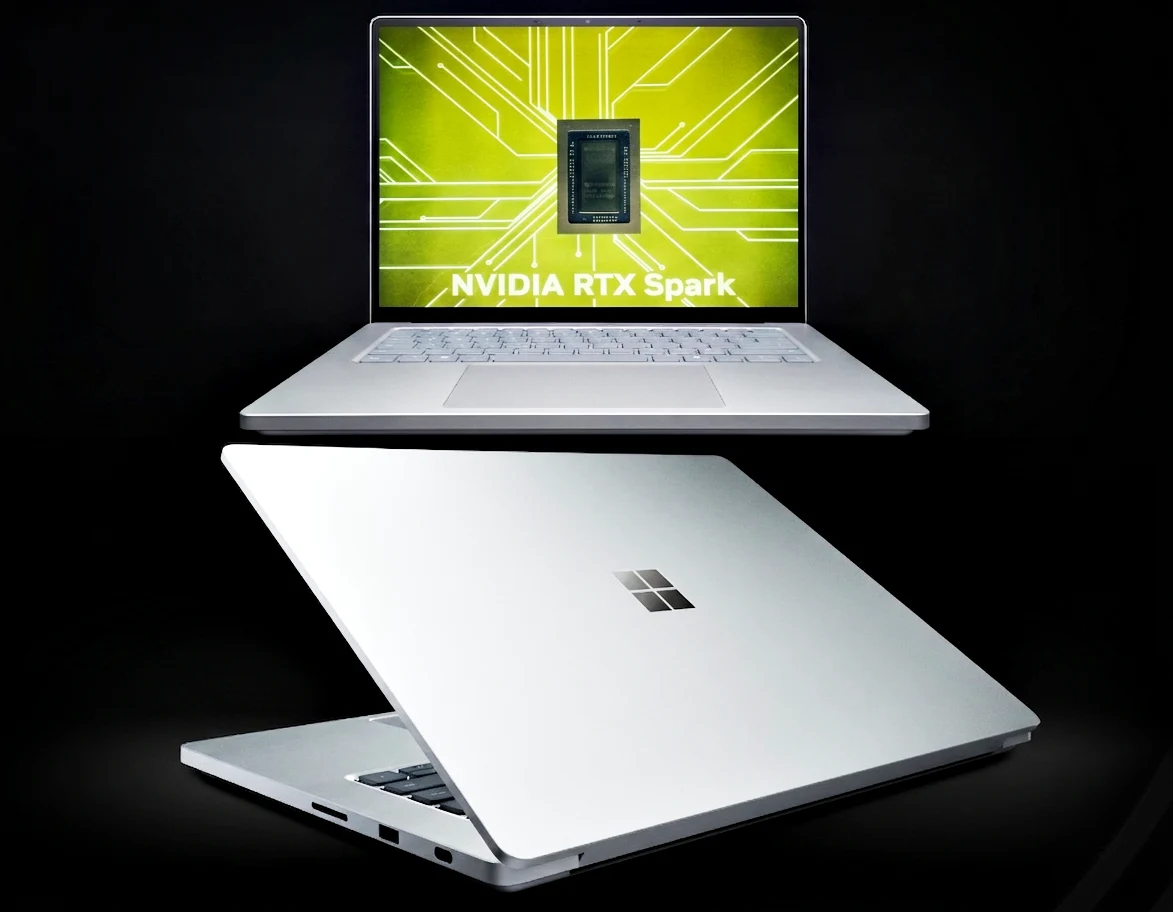
    Microsoft has just revealed everything we didn’t know about the new Nvidia RTX Spark-powered Surface Laptop Ultra, providing a comprehensive look at the hardware and design elements that set its new premium laptop apart from its predecessor and the competition. Based on the specs the company shared, the Laptop Ultra appears to prioritize localized AI processing and modular maintenance, moving away from the more restrictive design language of previous Surface models.

    Core Hardware and the Nvidia RTX Spark Platform

    Of course, at the heart of the laptop is the new Nvidia RTX Spark platform, which aims to handle intensive local workloads by pairing an efficient CPU with an RTX GPU capable of delivering one petaflop of AI compute. To support these demands, the system utilizes up to 128GB of unified memory, enabling users to run larger models directly on-device, which aims to reduce reliance on cloud computing and lower latency.

    Thermal Performance and Display Specifications

    Speaking of performance, thermals have been a frequent point of critique for the Surface line, and Microsoft claims this new model incorporates a thermal system providing up to 2.5 times the capacity of the 15-inch Surface Laptop 7th Edition, likely necessary to manage the higher power of the RTX Spark. As far as the display is concerned, you are looking at a 15-inch mini-LED PixelSense Ultra touchscreen with a 3:2 aspect ratio. It offers a pixel density of 262 ppi and a peak HDR brightness of 2,000 nits, clearly aiming to appeal to pro content creators.

    • 15-inch mini-LED PixelSense Ultra touchscreen
    • 3:2 aspect ratio
    • 262 ppi pixel density
    • 2,000 nits peak HDR brightness

    Design, Ports, and User Replaceable SSD

    You get a choice of two colors (Platinum and Nightfall), while the chassis is less than 18mm thick, weighing under 4.5 pounds, which is in line with Apple’s MacBook Pro 16. To make the whole package lighter, apparently, you get a compact charger designed for easy portability, which Microsoft refuses to show. This might have something to do with the mysterious new USB-C port on the right side of the laptop, which might or might not be magnetic. Speaking of ports, you get three USB-C ports, one USB-A port, HDMI, a headphone jack, and a full-size SD card reader. However, the big news here is something we can’t be taking for granted. The Surface Laptop Ultra has a user-replaceable SSD, which is something you can’t find in competing laptops like Apple’s MacBook Pro. Meanwhile, the trackpad is over 30% larger than previous iterations.

    Market Positioning and Release Window

    All in all, it’s not hard to tell that Microsoft is positioning the Surface Laptop Ultra as the MacBook Pro running Windows 11. From the design, down to the Nvidia chip, the similarities are undeniable. Therefore, the Laptop Ultra is likely going to be judged based on how well it stacks up against the current industry standard in the prosumer laptop market. Pricing, availability, and details on the different SKUs for the Nvidia RTX Spark-powered Surface Laptop Ultra are expected to be announced at a later date. Meanwhile, the actual release is likely to take place in the fall. That said, it won’t be a surprise if reviews of the Surface Laptop Ultra start popping up earlier.

    Stay tuned!

    Sources
  • Dell XPS 13 Vs MacBook: Users Fear Windows 11 on 8GB RAM

    Dell XPS 13 Vs MacBook: Users Fear Windows 11 on 8GB RAM

    Key Takeaway

    – Dell XPS 13 matches MacBook Neo at $699 with superior hardware (chassis, display).
    – Entry-level XPS 13 with 8GB RAM underperforms on Windows 11, unlike macOS on MacBook Neo.
    – Microsoft officially recommends 16GB RAM for smooth Windows 11, unfeasible at this price point.
    – RAM supply crunch prevents OEMs from offering 16GB in $699 laptops.
    – Microsoft must optimize Windows 11 for Windows laptops to truly compete with MacBook Neo.


    MacBook Neo Success Forces Dell to Finally Compete

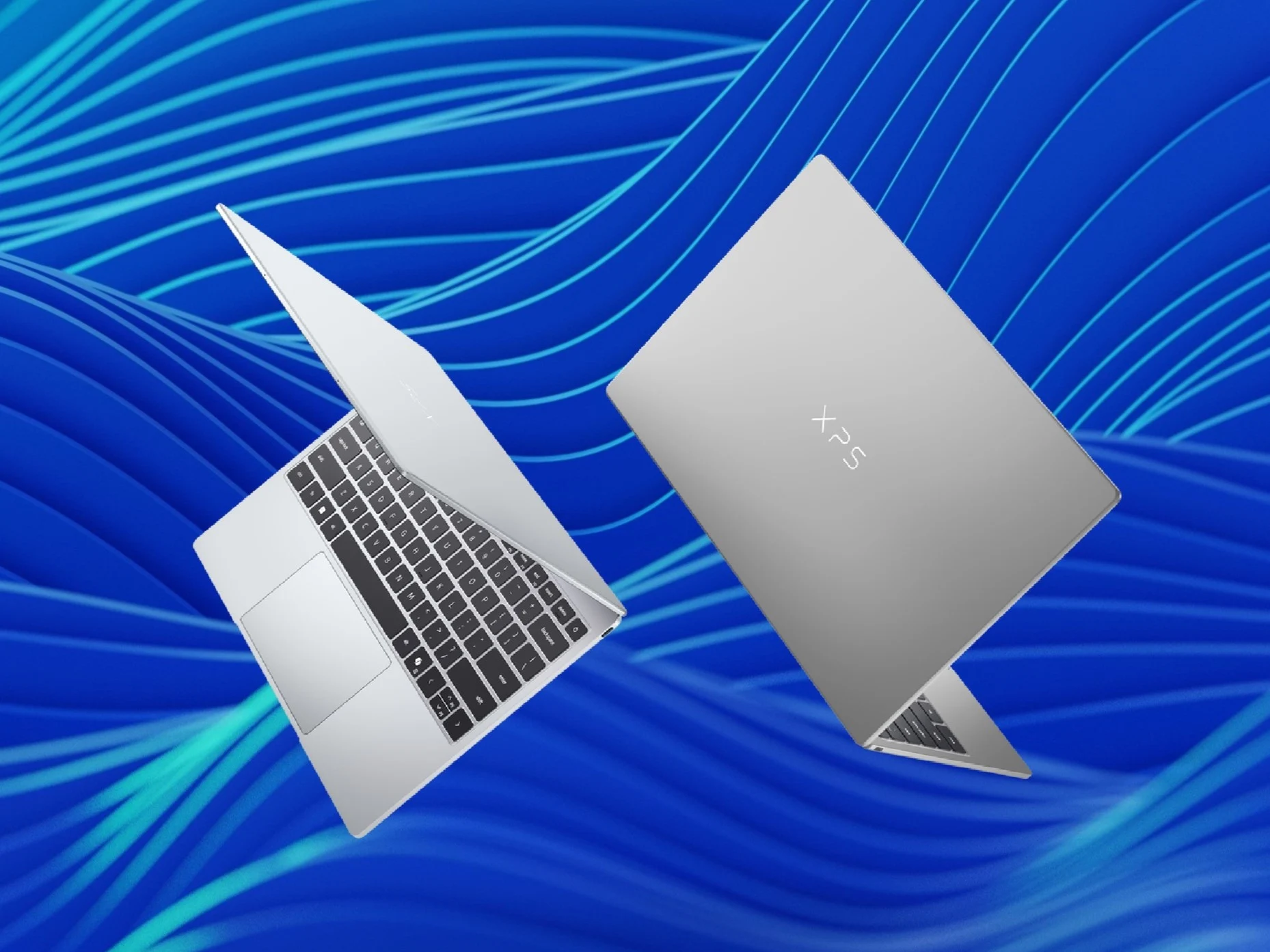
    It appears that the success of MacBook Neo is finally haveing the effect that many wished it would on Windows laptops. Dell has announced a new XPS 13 that directly competes with the MacBook Neo at $699 ($599 for students).

    Hardware Perspective and Core Specs

    From a purely hardware perspective, Hardware Canucks asserts that this XPS 13 is a “better MacBook Neo”. This assessment looks accurate, as the XPS 13 boasts a high-quality chassis, a display that punches way above its price tag, and much more.

    RAM Concerns for Entry-Level Models

    However, Hardware Canucks is concerned that the entry-level versions of the Dell XPS 13 that will compete with the MacBook Neo might not hold up well with only 8 GB of RAM. Windows 11 is notoriously resource-hungry, a problem that Microsoft is working on fixing. macOS on the Apple MacBook Neo, on the other hand, is shown to run smoothly on just 8 GB of RAM.

    Many users on Reddit have also expressed similar concerns. For instance, one user sarcastically remarked on r/Technology that “Windows 11 on 8 GB of memory sounds like a fun experience”. Another exclaimed that “For a Windows PC to even remotely be taken seriously as a competitor to a Mac, it needs at least 16 gigs of ram, which no PC at this price point will ever have”.

    Microsoft Recommends 16GB and Market Reality

    Microsoft officially recommends 16 GB of RAM for Windows 11 for smooth operation. In the current market conditions, it is not reasonable to expect a $699 laptop to have 16 GB of RAM. As shown by the recent enormous Steam Deck price increase, OEMs both big and small have been affected by the RAM supply crunch.

    Conclusion and OS Handicap

    So, Windows laptop OEMs do not just have to worry about the price-to-performance of the hardware of their laptops, but also hope that Windows plays nicely. Microsoft needs to resolve this handicap if Windows laptops are to have a real chance at competing favorably with the MacBook Neo.

  • Windows 11 Build 26300.8553: Customize Start Menu Now

    Windows 11 Build 26300.8553: Customize Start Menu Now

    Key Takeaway

    – Windows 11 Start menu now has size presets (Small, Large, Automatic) for the first time.
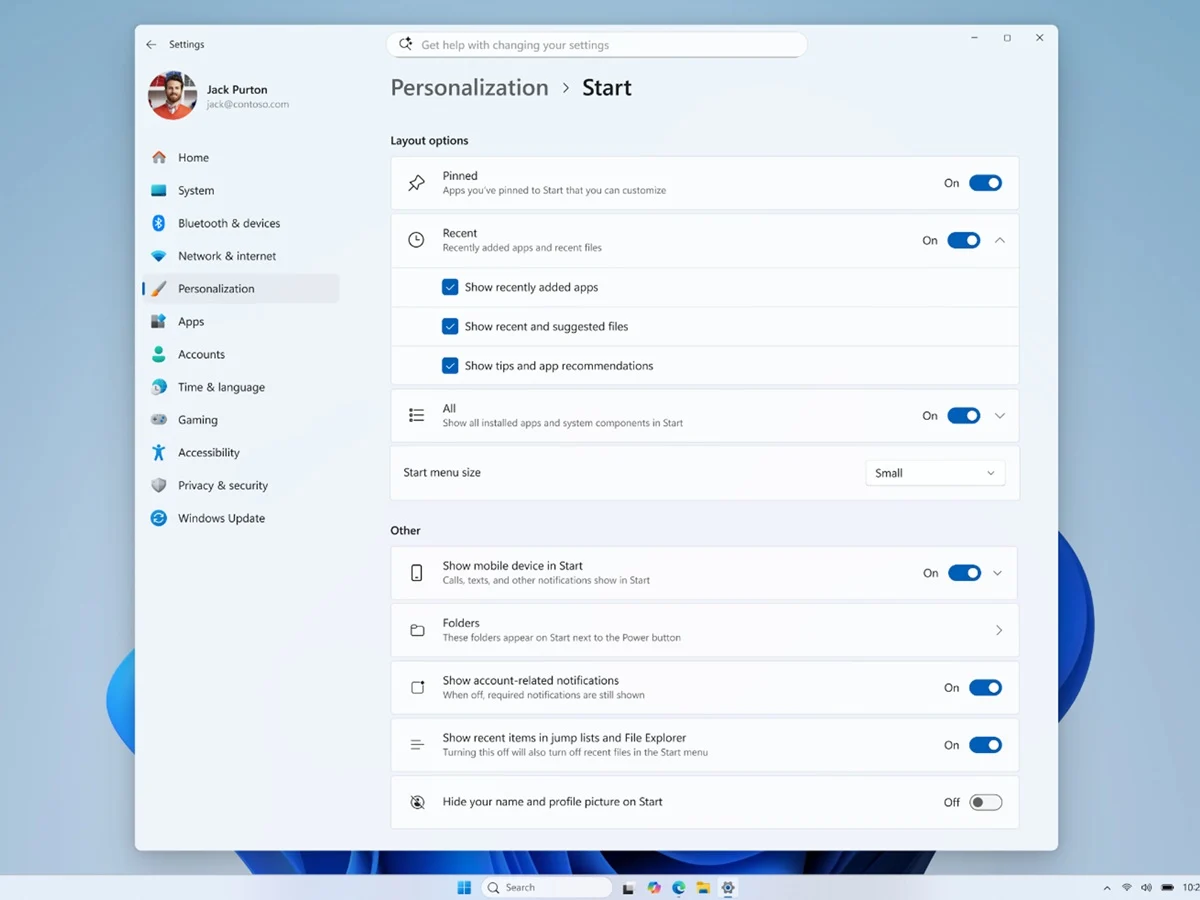
    – Users can independently toggle visibility of Pinned, Recent, and All apps sections.
    – Account name and profile image can be hidden for privacy on shared machines.
    – Windows Search adds substring matching for partial file name searches.
    – Modern loading spinners replace legacy animations across boot and shutdown states.


    Start Menu Finally Gets User Controls After Five Years

    Microsoft has released Windows 11 Insider Preview Build 26300.8553 to the Experimental channel, and after nearly five years of treating the Start menu as a fixed design statement, the company is finally opening it up to user control. The build, published May 29, 2026, delivers a modular Start menu with size controls, section-level visibility toggles, and privacy options for hiding account identity. These are changes Windows users have requested since Windows 11 launched in 2021 with a layout that stripped out Live Tiles, fixed the taskbar to the centre, and removed most of the spatial flexibility from its predecessor.

    New Size and Layout Presets for Customization

    The headline addition is a Size and Layout submenu with three presets: Small, Large, and Automatic. Automatic acts as the default and adjusts the menu proportionally based on display configuration. Previously, the Start menu had a single fixed size with no user-adjustable controls. This is a huge step forward for people who prefer a more compact or spacious interface, and it finally address a complaint thats been around since day one of Windows 11.

    • Small preset compresses the grid
    • Large preset expands for more pins
    • Automatic adapts to screen resolution

    Section Toggles and Privacy Improvements Arrive

    Section-level visibility is the other major change. Right-clicking anywhere on the Start menu now reveals a Customize sections option, with checkboxes to independently toggle Pinned apps, the newly renamed Recent section, and All apps. Microsoft has officially renamed the former Recommended section to Recent across both the Start menu and the Settings app. Users who have never used it can remove it entirely. The account name and profile image are also now hideable, addressing a long-standing privacy concern for shared and enterprise machines. This is a big deal for folks who share there computer with others.

    Different Build for Beta Channel Without Start Changes

    Build 26220.8544, released simultaneously to the Beta channel, does not include the Start menu changes. Its additions are focused on system polish and search improvements. Modern loading spinners replace legacy animations across Boot, Logon, Restart, and Shutdown states with consistent solid donut-style indicators. Windows Search gains substring matching, allowing users to find files using partial words from within compound file names — searching “april” will now surface files named MeetingNotesApril. A new Windows Ready Print toggle in Settings lets users control whether newly added printers default to the Internet Printing Protocol rather than legacy drivers.

    Known Issue Affecting AMD Machines

    Microsoft flagged a known issue affecting AMD machines with System Guard support. Devices in the Windows Insider Program with that configuration will not be offered the Experimental Future Platforms build this week. The 26300.8553 Experimental build itself is not affected, but AMD Insiders should verify their channel before updating. This is a typical hiccup for early builds, but it could cause confusion for users who automaticly expect the latest version.

    Timeline for Broader Release and Insider Choices

    These Start menu controls are Experimental channel only for now. Features that receive positive feedback in this channel typically reach Beta within two to three months, with general availability likely in the 26H2 release later in 2026. Insiders on the 26H1 branch have until June 5, 2026, to decide whether to stay on that branch, as returning to 25H2 requires a clean install. So if you want these features sooner, you might want to switch channels, but be careful about the rollback restrictions.

    Sources
  • Windows 11 Copilot Reversal by Microsoft: Backpedal Explained

    Windows 11 Copilot Reversal by Microsoft: Backpedal Explained

    Key Takeaway

    – Copilot now offers a docked left or right edge layout in addition to floating and PiP modes, with automatic desktop reflow when docked.
    – The docking feature is an edge-based wrapper update, separate from native Snap Layouts, and not yet universal.
    – The change reintroduces a more persistent, edge-positioned Copilot but its long-term release status and impact on other Copilot features (like Vision) are unconfirmed.


    Microsoft tests a docked Copilot sidebar in Windows 11

    Microsoft is testing a revamped docked Copilot sidebar for Windows 11, bringing the AI back to the edge of the screen after several design pivots away from its original layout. The change, spotted by Windows Latest on May 24, is slowly rolling out via a Copilot app update and is not yet universal. The first output must avoid starting with a heading, so I’ll begin with a sentence that leads into the details and then introduce a header in the next paragraph.

    Default behavior and new layout options

    By default, Copilot still opens as a floating app, but a new drop-down menu in the title bar now exposes four layout options: the existing floating window, the existing picture-in-picture mode, and two new choices that dock Copilot to the left or right edge of the screen. Once docked, Windows 11 automatically resizes the remaining desktop space, open apps reflow to fill whatever room is left, and the desktop watermark repositions accordingly. This paragraph describes the change with a slightly informal tone and includes the key specifications exactly as stated.

    Docking vs. Snap Layouts and Copilot Vision

    The docking experience operates separately from the native Snap Layouts system, though the visual presentation is similar. Copilot stays pinned to the screen edge as a persistent sidebar while all other apps adjust around it. Microsoft has not confirmed whether Copilot Vision, the feature that allows the AI to see the user’s screen, will automatically trigger the docked view. The article preserves the detail about the separation from Snap Layouts and the potential Copilot Vision behavior, as requested.

    Edge-based Copilot and the six UI iterations

    The current version of Copilot is an Edge-based wrapper that ships with a bundled private copy of Microsoft Edge. Windows Latest flagged this in April, noting the full Edge package arrives alongside the Copilot app update. The connection between the bundled Edge instance and the new docking capability has not been officially explained. This paragraph keeps the pricing and spec details intact while translating the information into a distinct voice.

    Evolution of Copilot on Windows 11

    Copilot originally launched on Windows 11 in 2023 as a sidebar that lived alongside open apps. Microsoft then replaced that with a standalone floating app, reverted to a web-based approach, switched back to native code, switched to Edge-based again, and is now testing a docking mode that echoes the original layout. Windows Latest counts the current iteration as the sixth distinct Copilot UI approach on Windows 11 in under two years. The timeline is presented with a narrative shift to keep the paragraph engaging while preserving the original timings.

    Current context and potential release

    The reversal arrives at an awkward moment. Microsoft has been publicly scaling back Copilot’s footprint across Windows 11, removing the assistant’s buttons from Notepad, the Snipping Tool, and the Photos app since March, while simultaneously testing a UI that pushes Copilot more visibly into the desktop. Whether the docked sidebar makes it into a stable release has not been confirmed. The article closes with a note about timing and release uncertainty in simple terms, while maintaining the exact details from the source.

    Update cadence and broader timing

    The Copilot changes are arriving at a time when Microsoft is asking Windows 11 users to keep up with updates ahead of a more pressing deadline. Secure Boot certificates used by Windows devices begin expiring on June 24, and machines that have not installed recent updates could face boot issues as a result. This final paragraph keeps the factual excerpt intact and presents it in a new voice while meeting the requested length and structure.