
Tag: AMD Radeon RX 9060 XT

  • Cyberpunk 2077 FSR 4 Support in AMD 25.8.1 Driver Update

    Cyberpunk 2077 FSR 4 Support in AMD 25.8.1 Driver Update

    Key Takeaways

    1. FSR 4 Activation Process: Enabling FSR 4 in Cyberpunk 2077 requires multiple steps, including using AMD’s overlay and restarting the game for the option to appear.

    2. Performance Gains: Activating FSR 4 significantly boosts performance, with up to 100 FPS at native 1440p high settings compared to 80 FPS without it; various modes provide additional FPS increases.

    3. Visual Quality Considerations: While Ultra Performance mode maintains decent visuals at 480p, it may introduce shimmering effects, especially with path tracing enabled.

    4. Comparative Performance: FSR 3 offers slightly better performance (10-15 FPS more) than FSR 4 in Quality mode, but it can cause flickering issues on some objects.

    5. Optimal Settings Recommendation: For the best experience, using FSR 4 in Quality mode at 1440p with high settings and high crowd density is recommended.


    Cyberpunk 2077 has officially added support for AMD’s FidelityFX Super Resolution 4 (FSR 4), but activating this feature is not as easy as simply checking a box. According to recent tests by the YouTube channel RandomGaminginHD, FSR 4 support came with AMD’s 25.8.1 driver update, while the game’s version 2.3 update finally utilizes it. Sort of.

    Steps to Enable FSR 4

    As the creator discovered, turning on FSR 4 in Cyberpunk isn’t just a straightforward process. First, you must start the game, press Alt+Z to bring up AMD’s overlay, manually enable FSR 4, and then restart the game for the option to show up in the graphics menu. Even after doing this, the sidebar may indicate it’s inactive until you load a save file, as happened during the YouTuber’s testing.

    Performance Improvements Observed

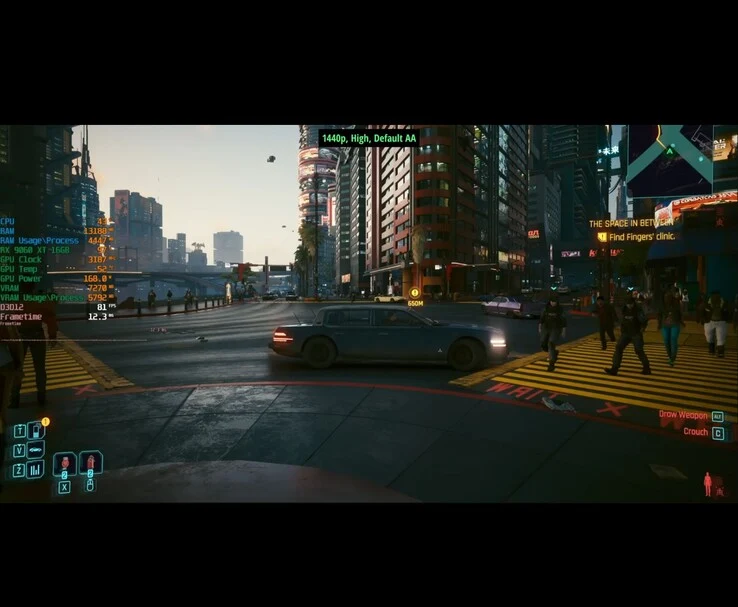
    After FSR 4 is activated, it demonstrates a noticeable performance scaling across different settings. On native 1440p high settings, the system, featuring an AMD Radeon RX 9060 XT 16GB and an Intel Core i7-12700F, managed about 80 FPS. Activating FSR 4 in Quality mode increased that to 100 FPS, while Balanced, Performance, and Ultra Performance modes each provided an additional 10–15 FPS boost.

    Visual Quality and Limitations

    Ultra Performance, which renders the game at a lower resolution of 480p, surprisingly maintained decent visual quality, according to the YouTuber’s findings. However, it did create visible shimmering on objects like fences and trees, especially with path tracing turned on. The RT Overdrive preset, featuring full path tracing, looked impressive but had difficulty reaching 30 FPS at native 1080p. The only way to approach 60 FPS was by upscaling from 480p using FSR 4, although this came with significant visual trade-offs.

    In the video, a side-by-side comparison of FSR 4 and FSR 3 was made, tested in the Badlands area of Night City within Cyberpunk 2077. FSR 3 provided a small performance advantage, offering around 10–15 FPS more than FSR 4 in Quality mode, but it also caused flickering on some objects like metal poles and bushes.

    Recommended Settings for Gamers

    For gamers searching for the optimal experience, the YouTuber suggests using FSR 4 in Quality mode at 1440p with high settings and high crowd density. You can check out the complete video linked below from RandomGaminginHD for a better grasp of how Cyberpunk 2077 performs with FSR 4.

    Source:
    Link


  • PlayStation 5 Pro Performance Compared to RTX 5060 Ti and Radeon 9060 XT

    PlayStation 5 Pro Performance Compared to RTX 5060 Ti and Radeon 9060 XT

    Key Takeaways

    1. The PlayStation 5 Pro matches the gaming performance of mid-range GPUs like the Nvidia GeForce RTX 5060 Ti 16GB and AMD Radeon RX 9060 XT 16GB.
    2. Performance tests were conducted using games such as Black Myth: Wukong, Forza Horizon 5, and Alan Wake 2, showing the PS5 Pro’s capability at 4K 60 fps with upscaling.
    3. The Radeon RX 9060 XT is highlighted as the best GPU choice for PC gamers at a price of $350, while the GeForce RTX 5060 Ti offers faster performance and more features.
    4. Nvidia’s RTX 5060 Ti 16GB is more expensive, and its 8GB variant struggles with demanding games; the RTX 5070 12GB provides better value.
    5. The ideal price for the GeForce RTX 5060 Ti 16GB should be below $400 for optimal value.


    As shown by recent tests from Digital Foundry, the PlayStation 5 Pro can match the gaming performance of some modern mid-range graphics cards, specifically the Nvidia GeForce RTX 5060 Ti 16GB and the AMD Radeon RX 9060 XT 16GB.

    Performance Comparison

    In their analysis, experts compared gameplay using the same graphics settings in titles like Black Myth: Wukong, Forza Horizon 5, and Alan Wake 2. With these conditions, the console’s chip performed comparably to mid-range GPUs, although desktop graphics cards still hold a slight advantage. The basis for the comparison was the console’s graphics mode, which features 4K at 60 frames per second with upscaling. The graphics settings on the PC were adjusted to match. In Alan Wake 2, the console consistently achieves a refresh rate of 30 fps in high-quality mode with ray tracing, although the ray quality is somewhat lower than that found in the PC version.

    Best GPU Choices

    From the viewpoint of PC gamers, the Radeon RX 9060 XT stands out as the superior choice, delivering impressive performance at a recommended retail price of $350. On the other hand, the GeForce RTX 5060 Ti 16GB is generally quicker and comes with more features, allowing it to run Cyberpunk 2077 with path tracing through frame generation.

    Price Points and Value

    That said, Nvidia’s 16GB graphics card is much pricier, while the 8GB variant struggles with demanding games. Digital Foundry mentions that the GeForce RTX 5070 12GB provides better value for its price compared to the GeForce RTX 5060 Ti 16GB. Ideally, the price for the RTX 5060 Ti 16GB ought to be below $400.

    Source:
    Link


  • Nvidia Confirms Pricey GeForce RTX 5050 for EU Market

    Nvidia Confirms Pricey GeForce RTX 5050 for EU Market

    Key Takeaways

    1. The Nvidia GeForce RTX 5050 will be priced at $249 in the US and €259 in Germany, launching in late July.
    2. The RTX 5050 is more expensive compared to the RTX 5060, which is only 23% to 12% pricier but offers significantly better performance with 50% more CUDA cores and 40% faster memory bandwidth.
    3. The RTX 5050 features 8 GB of VRAM with older GDDR6 technology, while the RTX 5060 uses newer technology.
    4. Competing options include the AMD Radeon RX 9060 XT starting at €299 and the Intel Arc B580 with 12 GB of graphics memory at €259.
    5. To match the price-performance ratio of the RTX 5060, the RTX 5050 would theoretically need to be priced around €200.


    The Nvidia GeForce RTX 5050 was just revealed on Tuesday and is expected to hit the market in the latter part of July. This graphics card will be priced at $249 in the United States. Nvidia has confirmed to ComputerBase that the recommended retail price in Germany will be €259. This puts the GPU about €7 higher than what a straightforward conversion of the US price (including VAT) would indicate.

    Price Comparison

    While the difference might seem minor, the listed price appears rather steep when compared to the GeForce RTX 5060. The next upgraded model in Nvidia’s desktop GPU lineup has an official price of €319, or €292 at some retailers. This means the GeForce RTX 5060 is only 23% and 12% pricier than the GeForce RTX 5050, respectively. However, it packs 50% more CUDA cores and has a memory bandwidth that is 40% faster. The RTX 5050 is fitted with 8 GB of VRAM, but it uses the older GDDR6 technology instead of the newer GDDR7.

    Competing Options

    On the other hand, the AMD Radeon RX 9060 XT starts at €299. If your budget is capped at €259, you also have the option of the Intel Arc B580, which comes with 12 GB of graphics memory at the same price point. Comprehensive tests are on the way that will determine if Intel’s mid-range GPU can outperform the GeForce RTX 5050. Additionally, some customers might find that purchasing used graphics cards could be a more advantageous choice. For the GeForce RTX 5050 to match the price-performance ratio of the GeForce RTX 5060, its price would need to drop to around €200, at least in theory.

    Source:
    Link


  • 8GB GPUs Still Relevant but Insufficient for 1080p Gaming 2025

    8GB GPUs Still Relevant but Insufficient for 1080p Gaming 2025

    Key Takeaways

    1. Nvidia faced criticism for releasing the RTX 5060 and RTX 5060 Ti without benchmarks, while AMD’s RX 9060 XT launch went unnoticed.
    2. AMD’s Frank Azor claims 8 GB of VRAM is sufficient for most gamers, as 1080p remains the most common resolution and esports titles require less VRAM.
    3. The assertion that 8 GB GPUs are adequate for all gamers is misleading; stronger GPUs with more VRAM can outperform weaker 8 GB models, especially in demanding games.
    4. AMD’s decision to skip the 12 GB variant for the RX 9060 XT may weaken its market position, especially against competitors offering higher VRAM options.
    5. There is significant demand for 8 GB graphics cards, particularly in developing regions, but limiting capabilities may harm the long-term health of the PC gaming landscape.


    Nvidia faced a lot of criticism for its decision to release the 8 GB RTX 5060 and RTX 5060 Ti without allowing reviewers to benchmark them. This makes AMD’s recent reveal of the 8 GB Radeon RX 9060 XT at Computex 2025 somewhat unexpected, as it didn’t receive much attention. Frank Azor from AMD has since taken to X to explain the reasoning behind the GPU’s launch. He stated:

    “Most gamers are still playing at 1080p, so they don’t really need more than 8GB of memory. The most popular games worldwide are mainly esports titles. We would not have developed this GPU if there wasn’t a demand. If 8GB isn’t sufficient for your needs, then you have the option of 16GB. It’s the same GPU, just different memory sizes.”

    Data Supports His Claim

    Steam’s hardware survey from April 2025 backs up his claim, showing that 1080p remains the most common resolution among users. While Steam doesn’t capture the entire PC gaming demographic, it represents a significant portion. Moreover, esports games typically don’t demand a lot of VRAM as they are often more reliant on CPU performance. Titles like Counter-Strike 2, DOTA 2, and Valorant can even run on integrated graphics. Many esports players might choose an 8 GB RTX 5060 or RX 9060 XT to enjoy a few games for over 5,000 hours. However, it’s possible they might explore other games too, especially with services like Xbox Game Pass offering access to popular AAA titles such as Doom: The Dark Ages and The Elder Scrolls IV: Oblivion.

    Misunderstanding of VRAM Needs

    However, saying that 1080p gamers have no need for more than 8 GB of VRAM is misleading. There have been multiple instances where graphics cards with 12 or 16 GB of memory but weaker GPUs have outperformed their 8 GB rivals, especially in titles that incorporate ray tracing. Additionally, many PC games release with optimization issues and bugs. The notion that 8 GB GPUs are unsuitable for AAA games is flawed because why invest in a gaming PC if you can’t play the games you want? While buyers of the 9060 XT might not expect to run everything on ‘Ultra’ settings for $300, struggling to achieve ‘Medium/High’ without FSR or DLSS is indeed a concern.

    Concerns About Market Position

    If the RTX 5060 Ti is any indication, the 9060 XT with 8 GB will likely encounter similar problems. It’s puzzling that AMD chose to skip the 12 GB segment altogether. A 9060 XT priced at $300 with 12 GB of VRAM could have provided better value and strengthened its stance in the mid-range GPU sector. It would have also been a strong marketing point, such as saying, “We provide more VRAM than our biggest competitor.” Even Intel, a newcomer in the discrete GPU market, wisely included 10 GB of VRAM in its Arc B570.

    The Value of 8 GB Graphics Cards

    Is there a demand for 8 GB graphics cards? Definitely. Gamers in developing regions often prefer 8 GB GPUs because of higher prices resulting from import taxes and other fees. The cost difference between 8 GB and 16 GB variants can often exceed $50 or even $100 for the same reasons. The xx60 series of GPUs have always been the workhorses of each generation, and limiting their capabilities just to save a few dollars on production will likely harm the PC gaming landscape in the long run. Why spend around $1,000 on a PC when you could buy a PlayStation 5 Pro and four games for that same amount?

    It may no longer be feasible to sell a $200 graphics card due to rising costs from TSMC wafers, tariffs, and inflation. However, a mere $50 difference between an 8 GB GPU and a 16 GB GPU makes the former appear less appealing, irrespective of the manufacturer. As Gamers Nexus might say: it’s a waste of resources.

    Source:
    Link

  • Nvidia Accused of Hiding RTX 5060 Reviews by Withholding Drivers

    Nvidia Accused of Hiding RTX 5060 Reviews by Withholding Drivers

    Key Takeaways

    1. Two new graphics cards, the AMD Radeon RX 9060 XT and Nvidia GeForce RTX 5060, are set to launch in mid-May, with prices starting at $269 and $299, respectively.

    2. Nvidia is lifting the review embargo for the RTX 5060 on May 19th, but the timing may not allow gamers to read reviews before purchasing.

    3. Nvidia is restricting access to press drivers, limiting reviewers’ ability to test the RTX 5060 thoroughly prior to its launch.

    4. Delayed reviews are expected, with some reviewers stating they won’t be able to provide coverage until about a week after the RTX 5060 goes on sale.

    5. Concerns exist that the RTX 5060 may not perform well due to limited VRAM, potentially leading to a disappointing launch with misleading marketing.


    We are looking forward to the arrival of two new graphics cards this month: the AMD Radeon RX 9060 XT and the Nvidia GeForce RTX 5060. These GPUs are expected to launch around mid-May, with the RTX 5060 starting at $299 and the RX 9060 XT 8 GB possibly priced at $269. Sadly, Nvidia appears to lack confidence in the RTX 5060.

    Review Timing Concerns

    Earlier reports highlighted that Nvidia plans to lift the review embargo and release the RTX 5060 on May 19th. This timing isn’t great since, in today’s GPU market with limited stock, gamers won’t have the luxury of time to read and analyze reviews before making a purchase. However, as noted by Hardware Unboxed and Igor’s Lab, the situation is even more troubling than initially believed.

    Restricted Access for Reviewers

    According to tech reviewers from Hardware Unboxed (HU) and Igor’s Lab, Nvidia is limiting the coverage of the RTX 5060 by restricting access to press drivers. Without these drivers, reviewers cannot properly test the RTX 5060, making it unlikely that there will be many reviews available on launch day.

    HU states that Nvidia is “trying to hide the RTX 5060” just like it did with the RTX 5060 Ti 8 GB. Additionally, they mention that Nvidia seems to be delaying the press drivers until the actual launch date of the RTX 5060, which coincides with Computex 2025 in Taiwan. This timing creates a challenge for reviewers to test and produce coverage for the launch.

    Delayed Reviews Expected

    In light of this, HU points out that even though “multiple RTX 5060 samples” are on hand, they won’t be able to review the card “until about a week after they go on sale”. Similarly, Igor’s Lab shares this view, telling their audience that there will be “no early access, no pre-tests, and no benchmarking for the sales launch”.

    Some might wonder: Why would Nvidia want to restrict the coverage of the RTX 5060?

    The answer appears to be straightforward: the RTX 5060 may not be a strong card, mainly due to its limited VRAM buffer. To illustrate the issue, HU has several videos discussing how 8 GB is insufficient for modern AAA games.

    As a result of the lack of independent coverage, gamers may face yet another disappointing GPU launch, potentially filled with misleading marketing.

    Source:
    Link

  • Asus Radeon RX 9060 XT RDNA 4 GPUs: 8GB & 16GB Options Revealed

    Asus Radeon RX 9060 XT RDNA 4 GPUs: 8GB & 16GB Options Revealed

    Key Takeaways

    1. The AMD Radeon RX 9060 XT is expected to launch in the second quarter, possibly as soon as April.
    2. Asus is preparing multiple models of the RX 9060 XT with options for 8GB or 16GB of VRAM, but pricing and full specifications are still unknown.
    3. The RX 9060 XT will likely feature an RDNA 4 GPU, 128-bit bus, and an 8-pin power connector, requiring a minimum of 500 watts.
    4. There are concerns regarding the adequacy of 8GB VRAM for newer games, making 16GB models potentially more appealing.
    5. Pricing predictions suggest a wide range for the RX 9060 XT, with higher costs for overclocked versions and TUF 16GB models.


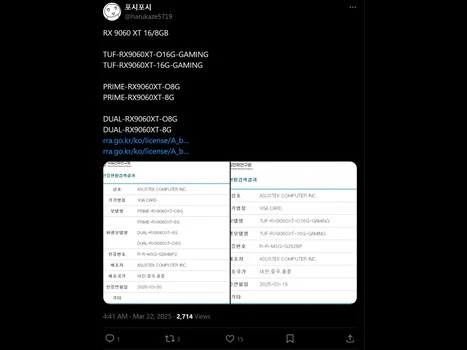
    There are increasing indications that manufacturers are gearing up to launch the AMD Radeon RX 9060 XT in the second quarter. Asus has shared details with the South Korean Radio Agency regarding their Prime, Dual, and TUF models, which will feature either 8GB or 16GB of VRAM. Sadly, there is still no information available about pricing or the complete specifications for the RX 9060 XT. Nevertheless, this news links up with recent mentions of Acer GPUs in filings from the European Economic Community (EEC).

    Anticipated Release Timeline

    Many industry insiders are predicting that the RX 9060 XT could be released as soon as April. AMD might roll out its newest RDNA 4 graphics card at the same time or even ahead of Nvidia’s launch of the RTX 5060 Ti and RTX 5060. Recent updates have revealed that the Blackwell GPUs have faced delays, so the RTX 5060 Ti might not be available until mid-April. To date, consumers haven’t seen any signs of the RX 9060 as AMD aims to compete against the RTX 5060 Ti with the RX 9060 XT.

    Expected Specifications

    The most reliable specifications for the RX 9060 XT indicate it will come with 8GB or 16GB of DDR6 memory, utilizing a 128-bit bus. Gamers can also look forward to the RDNA 4 GPU, which will likely be based on the more compact Navi 44 chip. Additional leaks hint that the RX 9060 XT will feature an 8-pin power connector and require a minimum of 500 watts to operate.

    Some consumers are doubtful about the value of the 8GB RX 9060 XT models. Newer games are increasingly demanding more VRAM, and for a mid-range GPU, 8GB might not be sufficient. Unless there is a significant price gap, cards with larger memory capacities are expected to be more appealing.

    Pricing Predictions

    Another concern is how many RX 9060 XT cards will actually be available at the manufacturer’s suggested retail price (MSRP). While the RX 9070 XT was priced competitively, many manufacturers chose to list overclocked versions at prices well above $599. There will probably be a broad spectrum of prices for the new Asus RDNA 4 GPUs, with the TUF 16GB SKUs likely being the most expensive. Notably, the company is bringing back a dual-fan option, which was not offered with the RX 9070 and RX 9070 XT.

    Source:
    Link