Tag: Bazzite

  • Affordable Steam Machine with Modified PS5 APU Board by Bazzite

    Affordable Steam Machine with Modified PS5 APU Board by Bazzite

    Key Takeaways

    1. The ASRock BC-250 motherboard is a budget-friendly alternative to Steam Machines, particularly if purchased at a low price.
    2. This motherboard is part of ASRock’s “cryptomining rig” line and features a simplified version of the PS5 APU.
    3. YouTuber ETA Prime chose Bazzite over SteamOS for its flexibility, enabling significant performance tweaks to the system.
    4. Modifications included allocating 8 GB of unified GDDR6 RAM to the GPU and overclocking it, resulting in a 30% performance boost.
    5. The BC-250 can run games well for a $100 motherboard, though prices have risen to over $150 or even $200, still making it a viable option for 1080p gaming.


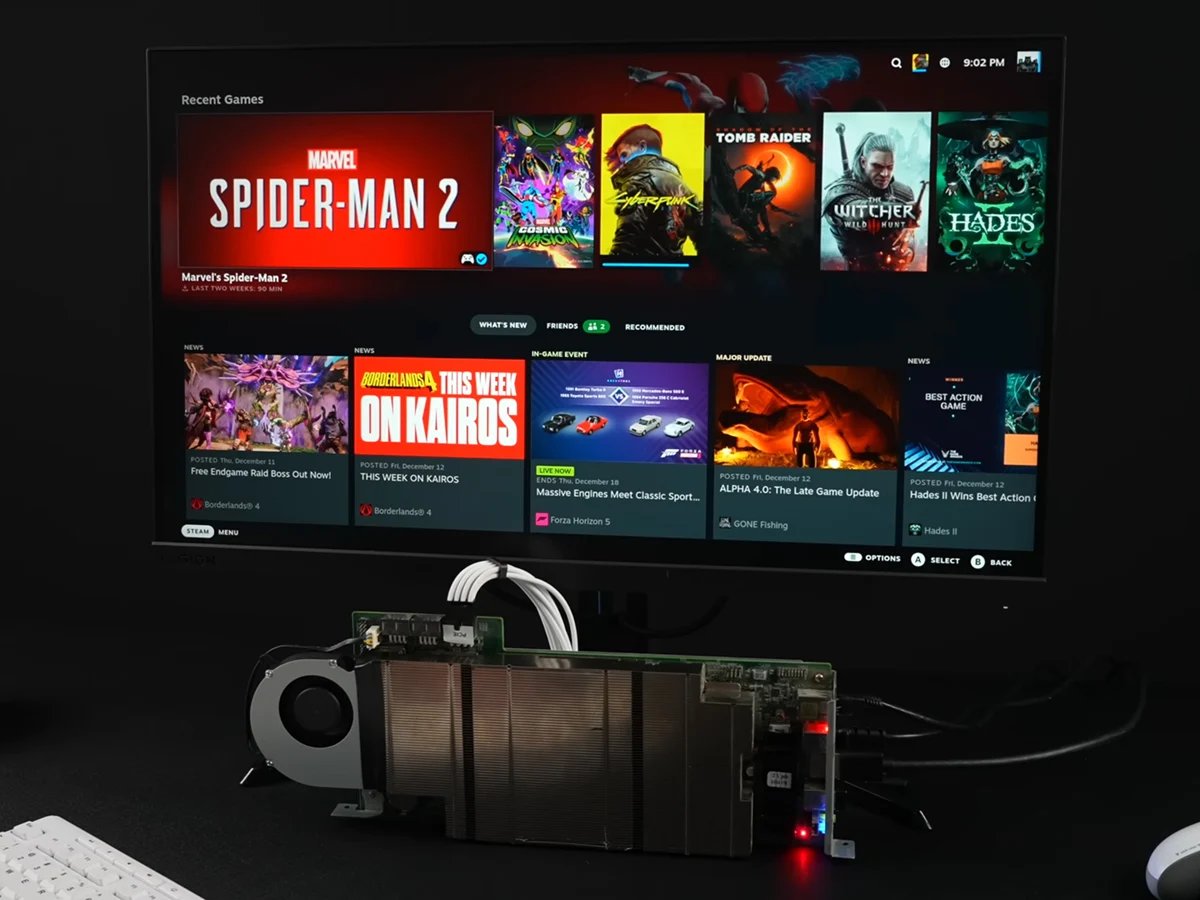
    YouTuber ETA Prime has recently gotten an ASRock BC-250 motherboard and demonstrated how it can serve as an inexpensive alternative to Steam Machines, provided the motherboard is purchased at an affordable price. This isn’t the first time this board has been discussed; initial reports about it date back to March 2022.

    Background on the BC-250

    As we mentioned before, ASRock marketed these boards as part of their “cryptomining rig.” These motherboards come with a simplified version of the PS5 APU, offering fewer CPU cores and a reduced GPU. Nevertheless, as shown by YouTuber Budget-Builds Official, it still offers a fair amount of gaming capability. ETA Prime has now revealed what this board can achieve with Bazzite installed.

    Choosing Bazzite Over SteamOS

    ETA Prime opted for Bazzite instead of the official SteamOS due to the former’s more lenient stance on hardware permissions. This flexibility allowed the YouTuber to implement necessary adjustments to transform it into a “$100 Steam Machine” alternative.

    One of the key modifications made was the VRAM allocation, with ETA assigning 8 GB from the 16 GB of unified GDDR6 RAM to the GPU. Additionally, the YouTuber has undervolted and overclocked the GPU from 1,500 MHz to 2,000 MHz. This alteration reportedly results in a 30% increase in performance.

    Impressive Gaming Performance

    The gaming capabilities are surprisingly good for a $100 motherboard. ETA tested five games, and the BC-250 managed to run them quite well.

    While these are commendable results for a $100 board, which can be combined with a $10 system fan and a 350 W PSU, the current pricing has changed since the release of these videos. On eBay, the price has risen to over $150, and on AliExpress, it can exceed $200. Even at the $200 mark, this setup could still be a reasonable choice if aiming for 1080p resolution and if the tweaks don’t pose a major issue.

    Source:
    Link


  • Asus ROG Xbox Ally X: YouTuber Installs Bazzite Linux for SteamOS

    Asus ROG Xbox Ally X: YouTuber Installs Bazzite Linux for SteamOS

    Key Takeaways

    1. The Asus ROG Xbox Ally X features a gaming-optimized version of Windows 11, marking a significant upgrade from the previous model.
    2. SteamOS’s growing popularity has prompted Microsoft to enhance Windows 11 for better gaming performance, as seen with the launch of similar devices like the Lenovo Legion Go S.
    3. Initial attempts to install the Linux distribution Bazzite on the Ally X faced technical issues, including BitLocker encryption preventing SSD formatting.
    4. While Bazzite improved responsiveness and navigation, some hardware features and controls were unresponsive, indicating the need for further optimization.
    5. Performance tests showed that while Linux provided a smoother interface, it did not significantly outperform Windows 11 in raw gaming performance.


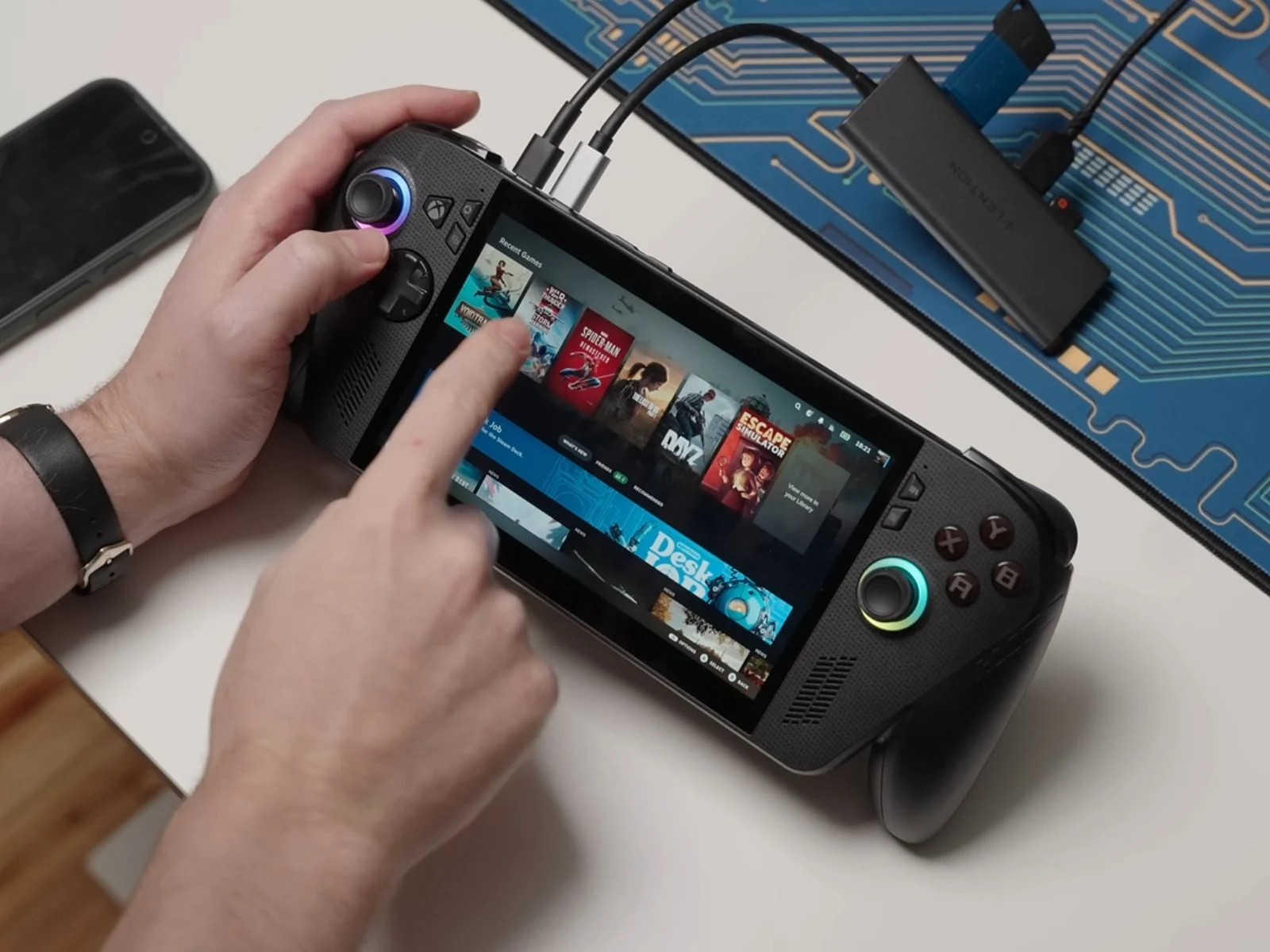
    We just got our hands on the Asus ROG Xbox Ally X for a review, and it clearly looks like a big step up from the previous model, the ROG Ally X. This latest handheld, which is Xbox-branded, comes with Windows 11 already installed—more specifically, a version that’s tweaked for gaming. However, some users still lean towards Linux-based systems like SteamOS for a smoother, more console-like feel.

    A Shift in Focus

    You could say that SteamOS has jolted Microsoft into action. It might even explain why Windows 11 got such a gaming-centric update, especially since SteamOS is gaining popularity among original equipment manufacturers (OEMs). For example, Lenovo recently teamed up with Valve to launch the Lenovo Legion Go S, which comes equipped with SteamOS.

    Testing the Waters

    To check if the ROG Xbox Ally X could match that experience, YouTuber Dawid Does Tech Stuff tried installing Bazzite, a Linux distribution inspired by Fedora and closely resembling SteamOS. Their aim was to see if Asus’s new handheld could provide a smoother interface and better performance without depending on Windows.

    They grabbed the Bazzite image for the Ally series from the official site and used Rufus to create a bootable USB. The first installation attempt hit a snag with an “unknown error.” After some investigation, they realized that BitLocker encryption was stopping the SSD from being formatted. After turning off the encryption and dividing the SSD into two partitions for dual-booting, they moved on to install Bazzite.

    Initial Challenges

    When the ROG Xbox Ally X first booted into Bazzite, none of the controller inputs worked. After a few moments, the system started recognizing them, although several buttons, including the menu keys, remained unresponsive. They manually reassigned inputs through Steam’s interface, which gave them partial control back.

    Even with these troubles, the YouTuber quickly noticed a major boost in responsiveness. “It almost feels like I’ve decalcified its brain,” they remarked, explaining how menus opened instantly, inputs felt quick, and navigation was way smoother than on Windows 11. Still, some essential hardware features—like RGB lighting around the thumbsticks, power mode controls, and Armoury Crate integration—completely stopped working.

    Performance Testing

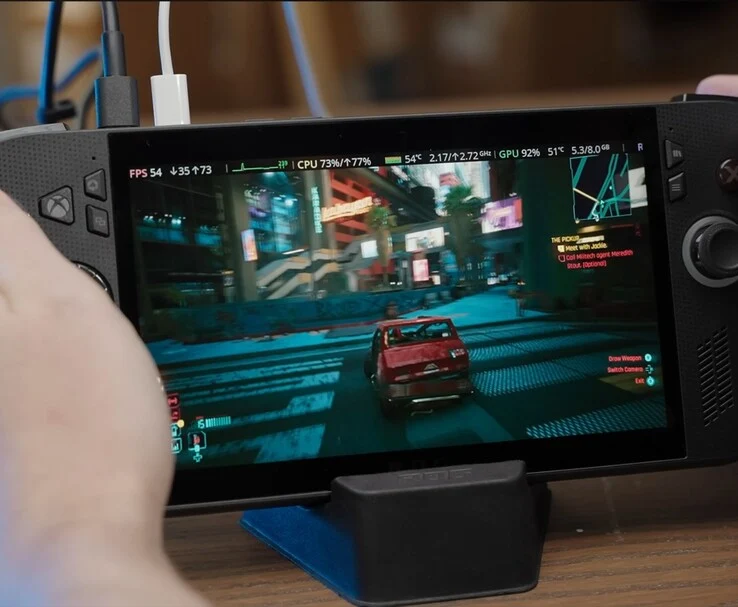
    Dawid conducted performance tests in Cyberpunk 2077 and Shadow of Mordor. In Cyberpunk, he struggled to get the performance overlay to show up until he installed MangoHUD, later switching to Steam’s tool. Initially, the game displayed a blank resolution field, but he figured it was running at 1080p. Overall, gameplay felt smoother, with slightly better frame rates and lower input lag compared to Windows 11.

    Shadow of Mordor acted as a more dependable benchmark, accurately detecting the display resolution. Frame rates were almost identical on both operating systems, indicating that while Linux enhanced interface fluidity, it didn’t provide a considerable edge in raw performance.

    After switching back to Windows and rebooting into Bazzite again, Dawid discovered that the controls had stopped working once again, only to miraculously function normally the next day, with RGB lighting oddly back on.

    Conclusion

    At this point, based on the YouTuber’s experience, installing a Linux gaming distro like Bazzite on the ROG Xbox Ally X doesn’t seem like a wise move. The video clearly shows that Bazzite still requires a lot of optimization for the latest Xbox-branded handheld to work well. If you’re considering trying it out yourself, it’s probably best to hold off for a bit, given that these new handheld devices have only just been released.

    Source:
    Link


  • Transform Your Framework PC into a Steam Console with Bazzite

    Transform Your Framework PC into a Steam Console with Bazzite

    Key Takeaways

    1. Valve may develop a Steam home console, but a DIY gaming console is possible now using AMD Ryzen AI Max series chips.
    2. The AMD Ryzen AI Max+ 395 APU shows significant performance improvements for laptops and mini-PCs.
    3. The Framework Desktop mini-PC running the Bazzite OS is close to functioning as an official Steam console.
    4. Game performance tests showed Horizon Zero Dawn Remastered at 66 FPS and Cyberpunk 2077 at 75 FPS on the Framework Desktop.
    5. The Framework Desktop maintained low temperatures and minimal fan noise during gameplay, enhancing the user experience.


    I recently shared news about Valve possibly developing a Steam home console. Although the actual Steam console may not be available for several years, you can create your own DIY gaming console using modern chips from AMD and various OEMs, such as Framework.

    AMD Ryzen AI Max Series

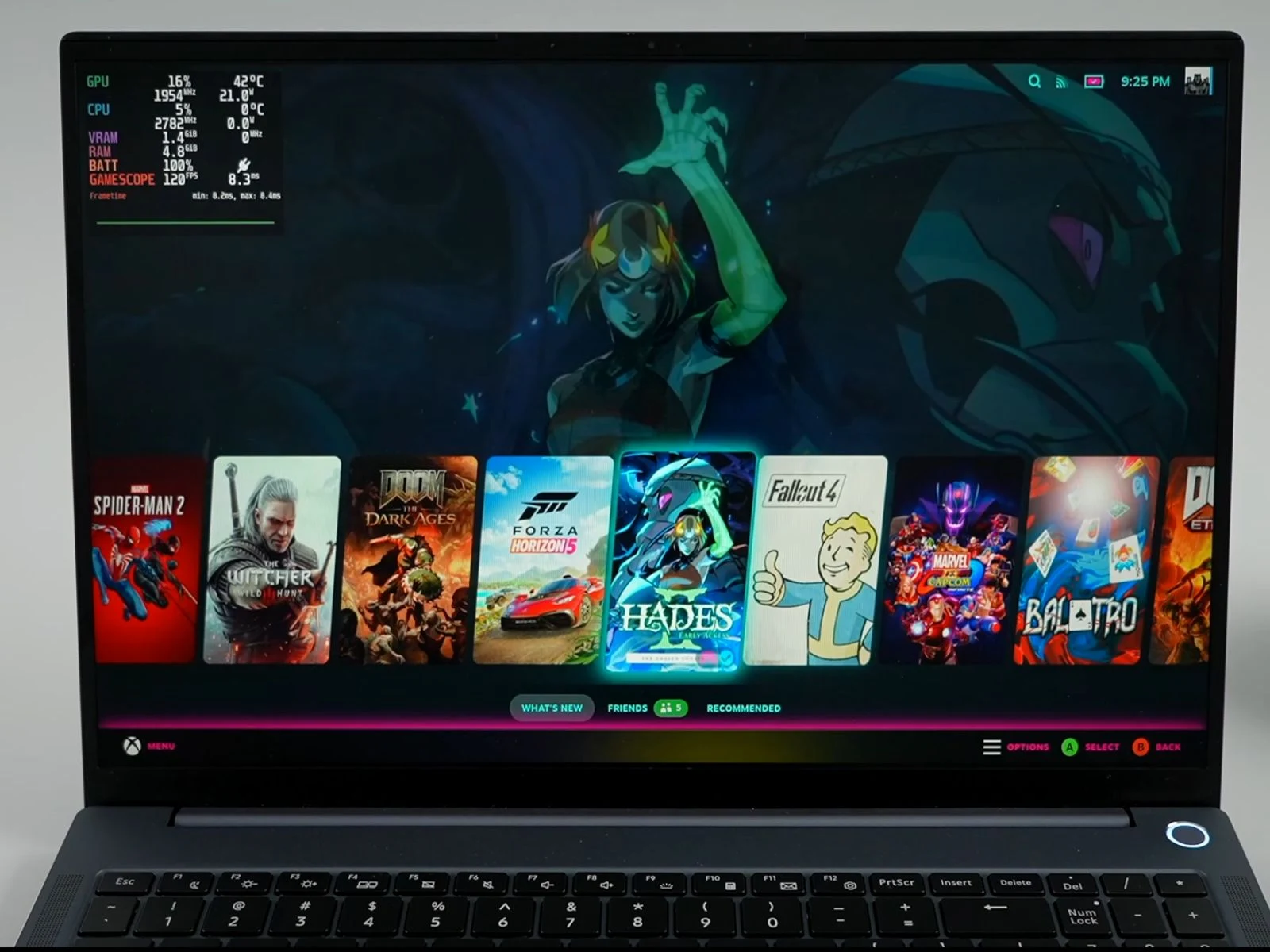
    The AMD chip series I’m referring to is the AMD Ryzen AI Max series, especially the Max+ 395 APU. This chip is becoming a significant advancement for both laptops and mini-PCs. I reported on its performance when the YouTuber ETA PRIME tested it in the soon-to-be-released AIM MAX+ laptop, running both Windows 11 and Bazzite.

    Framework Desktop Testing

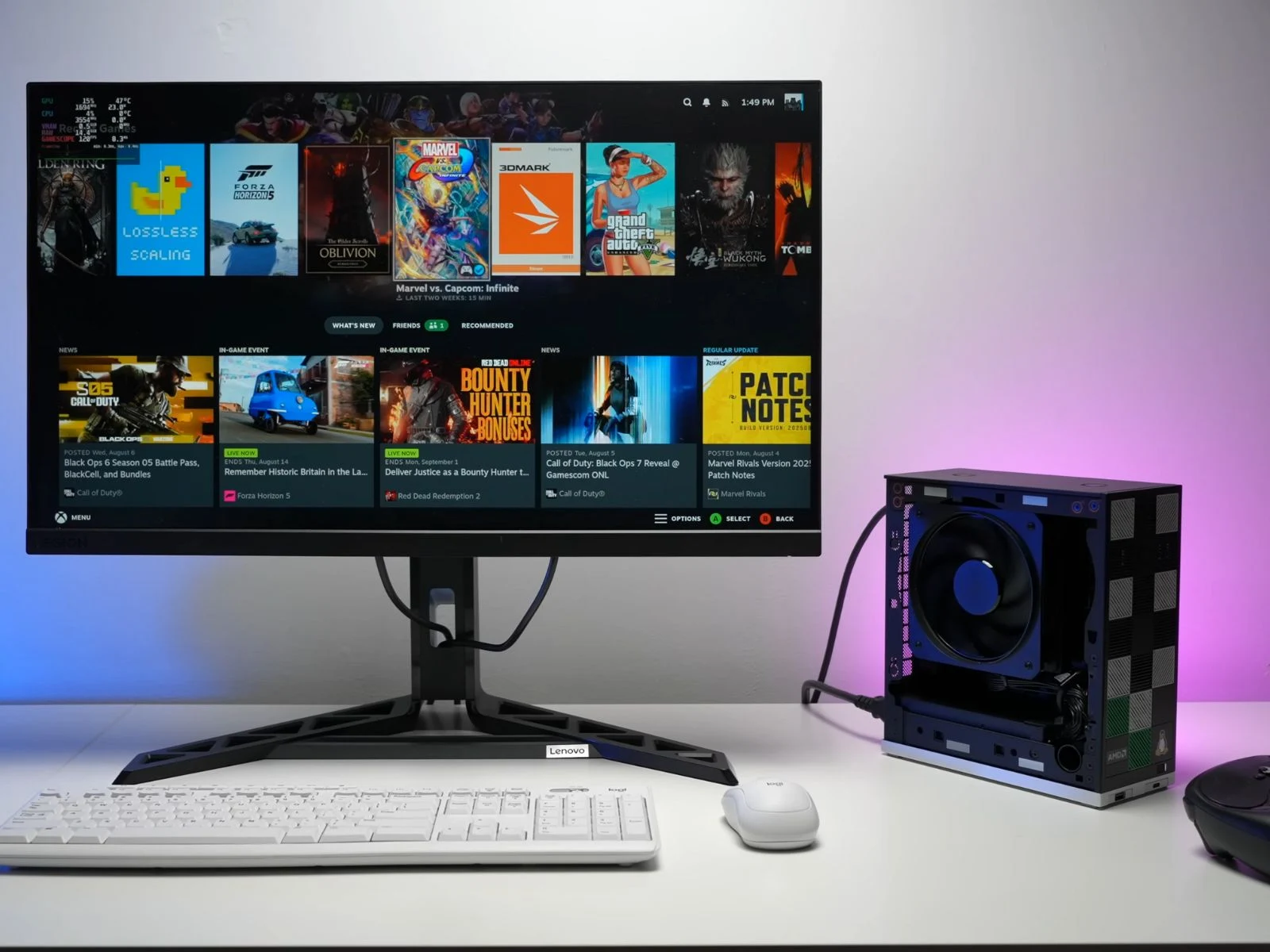
    We also observed the chip’s capabilities in the newly launched Framework Desktop with Windows 11. The YouTuber has now tested this mini-PC, installing the popular Linux gaming distribution, Bazzite, on it.

    ETA PRIME claims that the Framework Desktop is very close to functioning as an official Steam console because of its small size and the user-friendly nature of the Bazzite OS for controllers. If you want to try Bazzite on your main PC, don’t fret; it also includes a desktop mode for doing work in Linux.

    Game Performance

    In their testing, the YouTuber started with Horizon Zero Dawn Remastered, running it at a 1440p resolution on high settings with FSR set to Quality. The game averaged 66 FPS, slightly lower than the 72 FPS it achieved in Windows 11, based on ETA PRIME’s findings.

    The Framework Desktop maintained a TDP of 99–100W, with the processor temperature remaining under 65 degrees Celsius, which is impressive for thermal management.

    More Game Tests

    Next, ETA PRIME ran Cyberpunk 2077 at 1440p with high settings and FSR set to Balanced. The game performed at about 75 FPS. One notable aspect mentioned by the YouTuber was the absence of distracting fan noise: “It’s a pretty silent experience even with this boosting up to 100W,” they remarked.

    Source:
    Link


  • Linux Gaming on $1,000 AMD Strix Halo: 74 FPS in Spider-Man 2

    Linux Gaming on $1,000 AMD Strix Halo: 74 FPS in Spider-Man 2

    Key Takeaways

    1. Linux Gaming Performance: The AIM MAX+ laptop showcases strong gaming performance with the Bazzite Linux distribution, achieving impressive frame rates in titles like Spider-Man 2 and The Witcher 3.

    2. Hardware Compatibility: There are compatibility challenges with SteamOS on the AMD Ryzen AI Max+ 395 chipset, leading to the choice of Bazzite for better performance and stability.

    3. Game Testing Insights: The laptop performs well across various games, with notable frame rates: 74 FPS in Spider-Man 2, 80-100 FPS in Borderlands 3, and over 80 FPS in The Witcher 3 at 1440p settings.

    4. Launch and Pricing: The AIM MAX+ laptop is set to launch in early October 2025, priced under $1000, specifically targeting $999.99.

    5. Community Feedback: There is a mix of excitement and suggestions from the community, with some users wanting a cheaper model and others appreciating the current offering’s capabilities and Linux flexibility.


    Last time we discussed the AIM MAX+ laptop, we covered its specs, features, and performance in gaming with Windows 11, the default operating system that the upcoming AMD Strix Halo laptop will have, priced below $1000. In a recent video, YouTuber ETA PRIME took a different approach by installing one of the most well-liked Linux gaming distributions on the AIM MAX+ laptop powered by the AMD Ryzen AI Max+ 395, showcasing gameplay from titles like The Witcher 3, Cyberpunk 2077, and Shadow of the Tomb Raider.

    Hardware Compatibility Issues

    ETA PRIME pointed out that there are some hardware compatibility challenges with SteamOS on this chipset, leading them to opt for Bazzite instead. They customized it using Decky and CSS Loader, checked hardware features like Wi-Fi, Bluetooth, and TDP control, and confirmed that the operating system runs effectively on the laptop. Interestingly, the YouTuber recently managed to install SteamOS on an older iMac from 2019 and was able to play a few games on it.

    Performance Tests with Bazzite

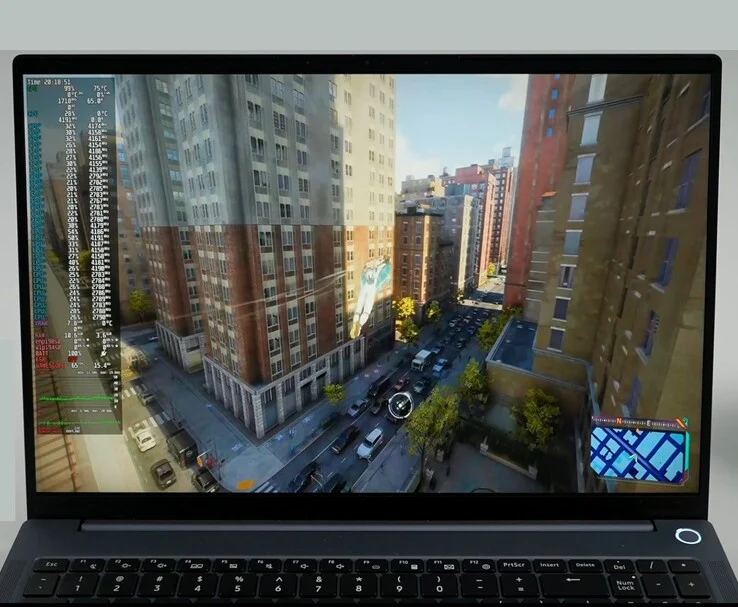
    Focusing back on the AIM MAX+ running Bazzite, the YouTuber began testing with Spider-Man 2, noting that this game typically has difficulty on lower-end integrated GPUs. However, the Radeon 8060S iGPU in the Ryzen AI Max+ 395 handled it impressively, achieving around 74 FPS at high settings with FSR set to Quality at the laptop’s native 1600p resolution.

    In a previous video, ETA PRIME also tested Spider-Man 2 on the same laptop but with Windows 11. In that case, the game suffered from stuttering, which was attributed to a shader cache issue. They ran the game at the same 1600p high settings but had FSR Frame Generation enabled.

    More Game Performance Insights

    Following that, the YouTuber tried out Borderlands 3, adjusting the resolution to 1440p for their external capture setup. They started with the highest graphics preset but encountered noticeable stuttering, so they reverted to the Ultra preset. Keeping the resolution scaling at 100%, the game ran much more smoothly, averaging between 80-100 FPS, though it occasionally dropped to around 70 FPS during intense action.

    The third title tested was The Witcher 3, which ran at 1440p Ultra settings, achieving an average of over 80 FPS, and it performed well overall. For the fourth game, Japanese Drift Master also ran smoothly at 1440p High settings, averaging 80-95 FPS. Shadow of the Tomb Raider followed suit, averaging 83 FPS at the 1440p Highest setting.

    Cyberpunk 2077 was examined at 1440p High with FSR 2.1 Quality, producing around 66 FPS, with the potential to exceed 70 FPS on balanced FSR, according to the YouTuber. Lastly, Doom: The Dark Ages experienced a crash at the menu, being the only game that failed to operate under Bazzite during this testing.

    Launch Plans and Community Reactions

    The AIM MAX+ laptop is set to launch in early October 2025, aiming for a price under $1000, which, according to both ETA PRIME and my insight, typically lands at $999.99. In the comments, the YouTuber’s followers displayed excitement about the laptop.

    While some viewers think the laptop is a great deal at $999, others expressed a preference for a cheaper model with fewer cores if one becomes available. ETA PRIME mentioned that AIM intends to offer just a single 32GB RAM version of the laptop, with no details about other chip configurations at this time.

    The combination of an AMD Ryzen AI Max+ 395 Strix Halo chip, equipped with one of the strongest integrated GPUs available, in a laptop operating a gaming-oriented Linux distro like Bazzite, appears to be exactly what many users desire in a daily use device. Not only does the laptop run efficiently, requiring only 65W for smooth operation, but it also offers something arguably even more appealing: the freedom of Linux.


  • Dual Boot Bazzite on Your Gaming Handheld: Step-by-Step Guide

    Dual Boot Bazzite on Your Gaming Handheld: Step-by-Step Guide

    Key Takeaways

    1. Bazzite’s Advantages: Setting up Bazzite for dual booting is straightforward and resolves common issues found with Steam OS, such as RGB lighting and button mapping.

    2. Storage Considerations: A larger storage capacity (1 TB) is recommended for dual booting to ensure enough space for both Windows and Bazzite, whereas 512 GB may lead to limited room for each OS.

    3. Partitioning Process: Proper partitioning is crucial; tools like Easeus Partition Master can help manage disk space more accurately than Windows’ built-in tools.

    4. Installation Steps: The installation of Bazzite requires creating specific partitions and sub-volumes, necessitating a keyboard for setup as there is no on-screen keyboard available.

    5. Performance Benefits: Users report improved battery life and functionality with Bazzite compared to Windows, along with enhanced game performance and seamless operation of hardware features.


    It is commonly known that using Windows on handheld devices can be a bit of a frustrating experience, but it does offer useful features like Game Pass and anti-cheat compatibility that help users overlook its shortcomings. On the other hand, configuring your gaming handheld to dual boot with an option like Bazzite allows you to enjoy the best features of both systems. While Valve’s Steam OS builds are available, using the beta version may lead to its own set of complications. For instance, RGB lighting might not function, TDP controls can be unreliable, not all buttons may be properly mapped, and the process for setting up a dual boot system hasn’t been well documented yet.

    Advantages of Bazzite

    Bazzite, however, does not experience these problems, and setting it up in a dual boot configuration is surprisingly straightforward, allowing for seamless switching between the two operating systems. It also supports a wide range of handheld devices, including those from GPD, ROG Ally (which you can find on Amazon), Ally X, Legion Go, OneX, and AYN. The dual booting process for Bazzite is generally consistent across these devices.

    Storage Considerations

    It’s important to remember that if you’re working with a system that has only 512 GB of storage, you will be dividing your space between the two operating systems, which can leave each with limited room. In contrast, a 1 TB drive provides ample space for dual booting while still leaving plenty of room for games on either Windows or Bazzite.

    To begin the process, you’ll require some hardware and software:

    First, download the Bazzite image specific to your device from the designated website and write it onto a USB stick using Balena Etcher or a similar USB image writing application like Rufus. After preparing the USB, you’ll move on to Windows to adjust your drive’s partitions.

    Partitioning Your Drive

    Depending on how much space you intend to allocate to Bazzite, you might need to remove some software from your Windows partition. I was aiming to use around half of a 1 TB drive, so it’s crucial to ensure you have at least 600 GB of free space. Once you have the required space, open “Computer Management” in Windows and navigate to “Disk Management” from the left sidebar. (Alternatively, you can press Win + R and type diskmgmt.msc)

    By right-clicking the primary (largest) volume on your drive, you can select “Shrink Volume.” This will display the maximum amount of space that can be freed up from Windows. If the amount seems reasonable, click “Shrink” on the next prompt, and you should be all set. You’ll see a black bar labeled “Unallocated Space”; if this amount meets your needs, you can proceed with the installation. You may also delete the “Recovery Partition,” which frees up about 1 GB of space using a specific guide; however, if you ever need to reinstall Windows, you’ll have to do it from the beginning (which isn’t necessarily a bad thing).

    That said, during my attempts, I found that Windows sometimes inaccurately reported the available free space. If you encounter this issue, I recommend a free tool called Easeus Partition Master, which I’ve relied on for managing partitions for years.

    Using Easeus Partition Master

    Once installed, the process for shrinking the partition is pretty much the same. Right-click on the volume, select “Extend / Shrink,” and drag the slider to release the space. Click “Execute Task” on the next screen, and Easeus Partition Master will boot into a separate recovery image from Windows to carry out the operation, which helps avoid the issue of Windows underreporting free space.

    After you’ve successfully partitioned your drive, reboot into Windows and check the disk space to confirm that it has shrunk. If it has, connect your USB dock, keyboard, and the USB drive containing Bazzite. You will need to boot from the USB stick, which involves accessing the BIOS/UEFI menu on your device. Shut down Windows, then power on the device while pressing the volume down button (similar to pressing the delete key on a desktop PC). This process may differ between devices. Once in the BIOS, navigate to the security tab and disable “Secure Boot.” In some cases, you might first need to set an administrator password to enable the option for disabling Secure Boot.

    Installation Process

    You may need to reboot back into the BIOS for the changes to take effect. After that, adjust the boot device order to prioritize the USB stick, and you should enter the Bazzite installation menu.

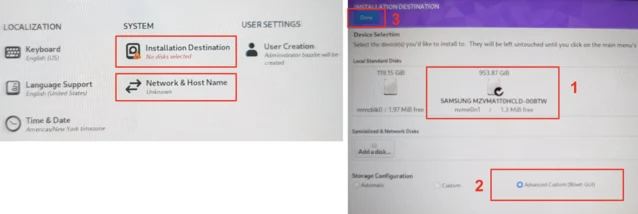
    Once in the installer, connect to your Wi-Fi network and create a new user with the name and username “deck.” Next, select the “Installation Destination.” It’s vital to have a keyboard connected here, as there is no on-screen keyboard available in the installer. Choose the free space on the right side of the disk layout that we created by shrinking Windows, and click the + button. You will need to create three different partitions. For each partition, select the free space and click the plus button. Assign each partition the following properties:

    After you’ve set up the three main partitions, a folder named btrfs.XXX will appear where you will need to create three btrfs sub-volumes. Select this folder and again click the plus button to create the following three sub-volumes. There’s no need to specify space here; just focus on the Mountpoint.

    Once your partition layout is correct, click “Done” in the upper left corner and “Accept the Changes” in the subsequent popup. This will take you back to the installation overview screen we saw earlier, and you can click “Begin Installation” in the bottom right corner. If everything is done correctly, after a few minutes, your device should reboot into Bazzite.

    Final Steps and Performance

    From this point, you can opt to install additional software like DeckyLoader and EmuDeck, but this step is optional. What you should end up with is a fully functioning Bazzite installation ready for use. Just sign into Steam as you would on a Steam Deck, and you’re set.

    Switching between Windows and Bazzite is as straightforward (or complex) as accessing the boot menu on your device and picking the installation you wish to use. Bazzite will be the default option during a normal boot unless you change the order in the BIOS. Alternatively, you can create a shortcut in Bazzite to boot into Windows automatically. To do this, navigate to the power menu, select “Switch to Desktop,” open a terminal window, and type:

    ujust setup-boot-windows-steam

    This action will add “boot-Windows” as a Non-Steam shortcut in your game library.

    Regardless of your feelings about Windows, Bazzite (and Steam OS) offers a much easier way to interact with your device, while keeping Windows as an option allows you to enjoy the best of both systems. With Bazzite, everything functions as intended. All buttons work properly, including the rear ones. The RGB on the Ally X is functional and customizable, TDP controls work well, and global scaling and filters like FSR operate correctly too. The major advantage is the ability to suspend your session by pressing the power button, allowing your device to resume right where you left off with minimal battery loss—something that has historically been problematic on Windows. It even comes with WayDroid pre-installed, enabling you to run Android apps as well.

    In terms of performance, I found both operating systems to be quite similar, but battery life improved significantly. Numerous users report enhanced performance in certain games when using Bazzite, though individual results may vary.

    Although an official Valve release of Steam OS is anticipated in just a few weeks as of late March 2025, Bazzite stands as a mature product that is easy to set up, fully functional, and compatible with nearly every handheld device, which is why many users consider it the top choice for handheld operating systems.

    Source:
    Link



  • Lenovo Legion Go S: Gaming Handheld Outperforms Windows with Bazzite

    Lenovo Legion Go S: Gaming Handheld Outperforms Windows with Bazzite

    Lenovo has announced that the Steam OS version of the Legion Go S won’t be available for a while. The company hasn’t given many details yet, but during last month’s Consumer Electronics Show (CES), it mentioned that the Linux-based version of their new gaming handheld will not be ready for sale until sometime in May.

    Windows Version Availability

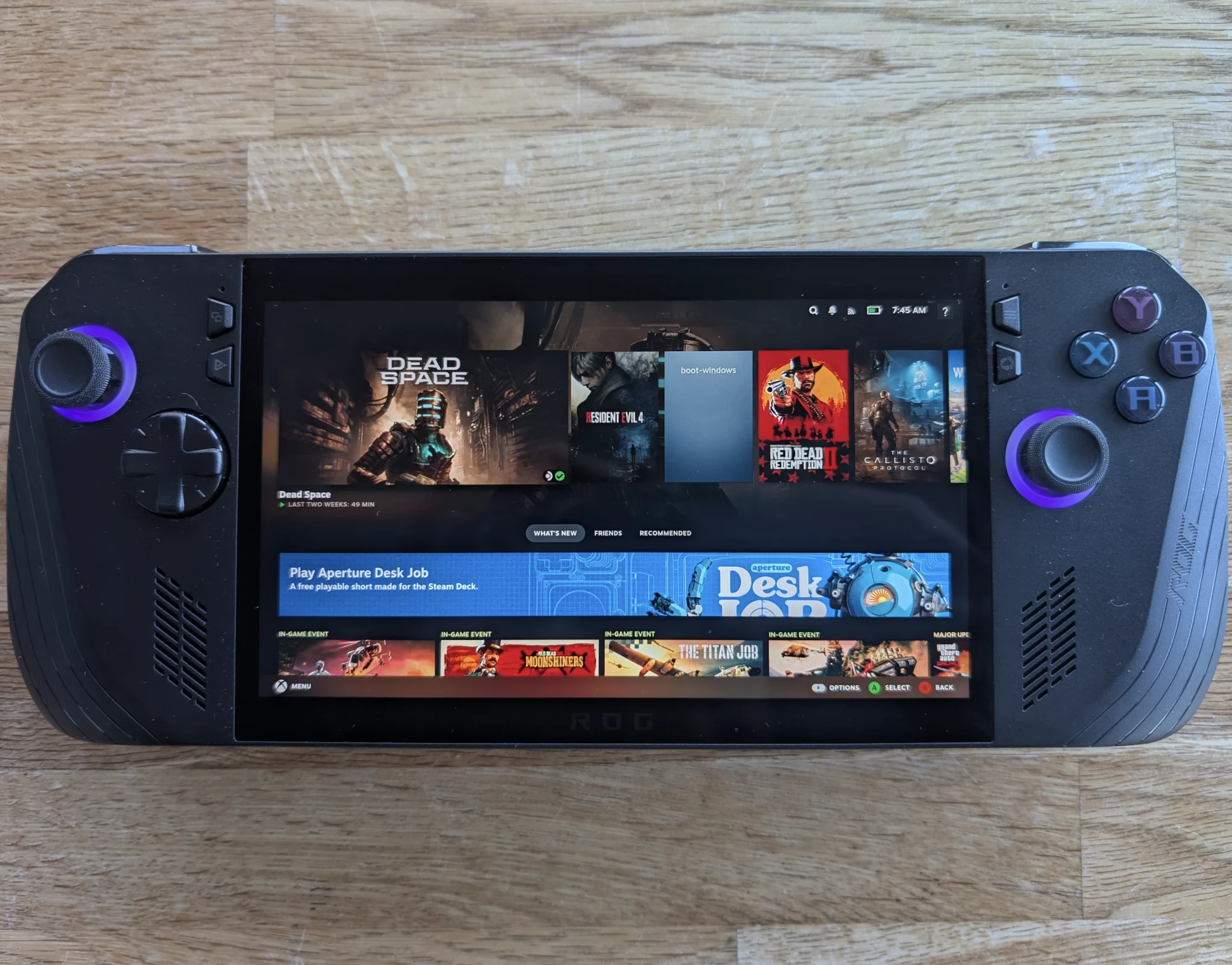
    In contrast, the Windows version has been available for pre-order worldwide for nearly a month now, featuring the same hardware as the SteamOS version. Bazzite, a well-known alternative to SteamOS, supports Lenovo’s newest gaming handheld. YouTuber ETA Prime recently tested it in a new video, showcasing its capabilities.

    Performance and Pricing

    According to Bazzite’s installation page, the Legion Go S operates on the same version of Bazzite as the current Legion Go (priced at $549.99 on Amazon). This means it already offers full TDP control and RGB settings. ETA Prime noticed significant performance improvements when using Bazzite on the Legion Go S compared to the standard Windows 11 setup.

    Moreover, the Legion Go S is reported to deliver a more seamless gaming experience than the Steam Deck OLED, thanks to its advanced AMD Ryzen Z2 APU and the option for 32 GB of RAM. However, the price of $729.99 for the Legion Go S (Windows) in the US makes it a pricey choice for a Bazzite handheld, especially when the SteamOS version will be available in a few months for $499.99 with nearly identical specs.

    Source:
    Link

  • Legion Go S: Best SteamOS Alternative for Lenovo’s Gaming Handheld

    Legion Go S: Best SteamOS Alternative for Lenovo’s Gaming Handheld

    Popular Linux distribution Bazzite has shared some exciting news regarding the Legion Go S, which Lenovo revealed earlier this month along with a special Steam OS version. While pre-orders kicked off soon after, this only applied to the Windows edition. For some unknown reason, Lenovo is postponing the Steam OS version until at least May.

    New SteamOS-like Environment

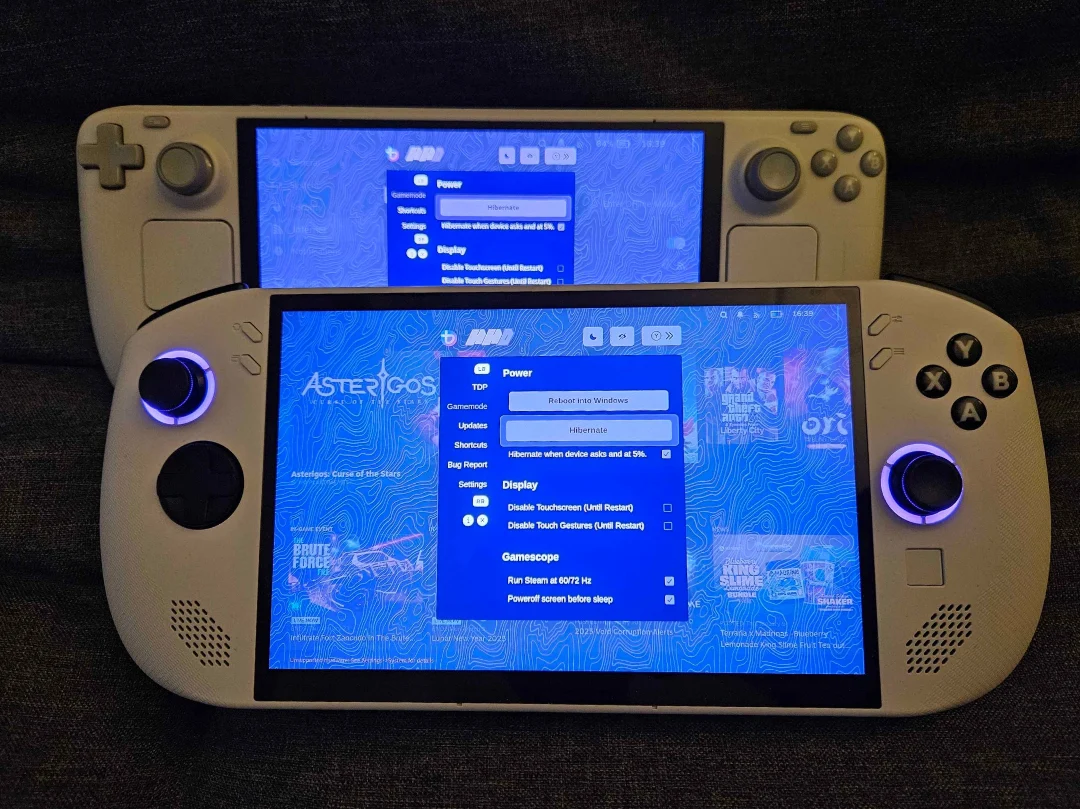
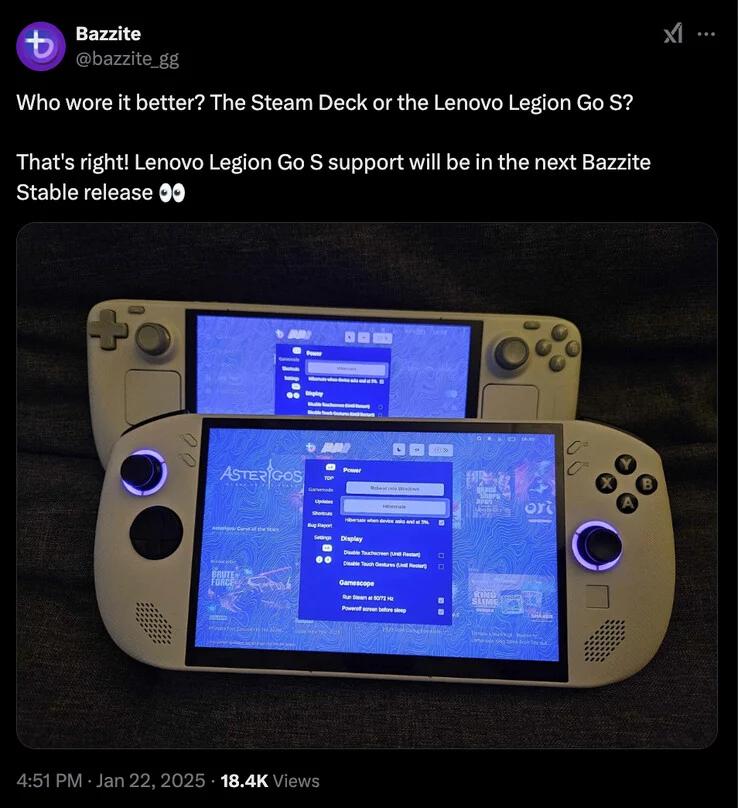
    However, users will soon be able to set up a SteamOS-like environment on the Legion Go S that is now being shipped. Bazzite announced on its social media that it has added support for the Legion Go S to its latest gaming handheld, just like it did for the Legion Go (curr. $649 on Amazon). The best part? This support is already included in Bazzite’s newest stable release, which is v41.20250121.

    Installation Details

    It’s important to note that Bazzite does not erase any existing Windows installations. The operating system can be installed as a separate partition, allowing users to dual boot back into Windows whenever needed. Bazzite also offers options for rebooting straight into Windows, which eliminates the need to access the device’s BIOS.

    Specifications and Availability

    Currently, the Legion Go S is available in most markets with two memory options, featuring 32 GB of RAM and 1 TB of storage at the top end. The more affordable option includes 16 GB of RAM and 512 GB of storage but shares the same core specifications as the more expensive model. All Legion Go S versions come equipped with an AMD Ryzen Z2 Go APU, a 55.5 Wh battery, and an 8-inch IPS display that boasts a 1200p resolution and a 120 Hz refresh rate. For installation instructions, be sure to visit Bazzite’s website.

    Source:
    Link