
Key Takeaways
1. Easy Setup and Organization: RomM simplifies game setup by allowing users to import thousands of ROMs, automatically gathering metadata and organizing games by platform.
2. Wide Compatibility: Built on EmulatorJS, RomM supports various systems up to the original PlayStation and includes touch controls for mobile browsers, as well as keyboard and gamepad support.
3. Docker Installation Requirements: Users must create a Docker container and a MariaDB container for installation, with pre-built templates available for platforms like Unraid and TrueNAS.
4. Importance of Folder Structure: Proper folder structure on the NAS is essential for metadata scraping, requiring ROM and BIOS files to be organized correctly to ensure smooth operation.
5. Future Enhancements: The developers plan to add features like console mode for TVs and built-in PSP and DOS emulation, signaling ongoing support and updates for RomM.
Being able to play self-hosted games in your browser isn’t a new concept. For over a decade, EmulatorJS has been catering to this need by utilizing RetroArch’s libretto cores to provide game emulation.
RomM’s Unique Features
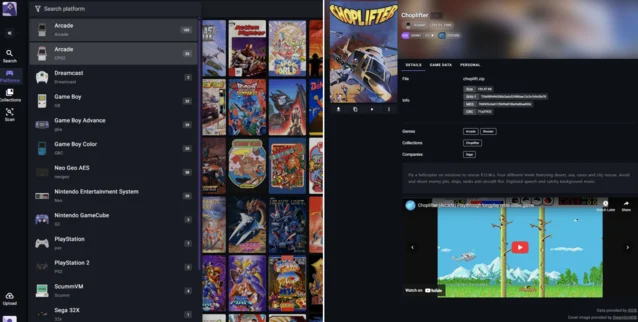
RomM takes advantage of EmulatorJS and RetroArch to run games online. Its standout feature is the simplicity of setup, as well as its capabilities for metadata scraping, ROM organization, and support for RetroAchievements. During the initial setup, you can import thousands of ROMs, and if they are named right, it will automatically gather screenshots and metadata from places like Screen Scraper and IGDB. You can add new games via the web interface, which organizes everything by platform, including cover images, screenshots, and gameplay videos.
Compatibility and Controls
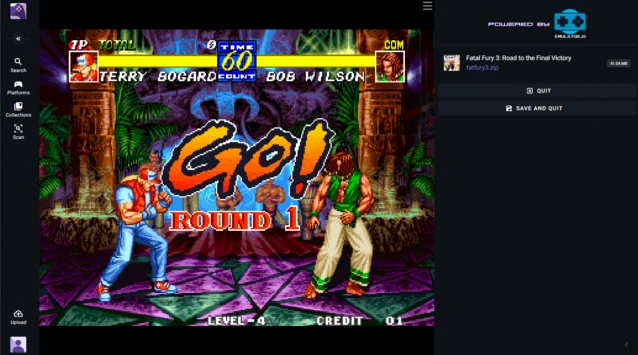
Since RomM is built on EmulatorJS, it enables you to play almost any system directly in your browser. Mobile browsers allow for touch controls, but it also supports keyboards and gamepads, as touch screens are not the best for enjoying retro games.
While my personal ROM library doesn’t cover every system that RomM and EmulatorJS support, systems up to the original PlayStation work smoothly. Nintendo and Sega consoles are included, along with Neo Geo, TurboGrafx, and a good variety of arcade ROMs like CPS 1 and 2. Unfortunately, later consoles such as the Dreamcast, GameCube, and PS2 cannot be emulated directly in the browser, though you can easily download them to your preferred emulator.
Installation Process
Setting up RomM is fairly simple. You will need to create a Docker container, and the compose file can be found here. Additionally, a corresponding MariaDB container is necessary. If you’re already using MariaDB for other services, like Immich, you can either run separate instances or utilize Adminer to create a new database and user within the same instance. Pre-built templates for these setups are available on Unraid and TrueNAS. Don’t forget to create accounts with Screen Scraper and IGDB to get a client ID and secret for metadata scraping.
Although RomM’s documentation is quite helpful for setup, there were some parts that confused me initially.
To proceed, you need to generate a RomM_AUTH_SECRET_KEY, which can be done in the terminal by typing “openssl rand -hex 32”. Make sure to paste the generated output in the right section of your compose file.
Configuration Files
Recent versions of RomM also need a config.yml file. An example file is available on the RomM GitHub page, and it should be placed in the “config” folder mentioned in the container compose file.
After you have the containers running, you should see an account creation screen to access the system. There are a few more steps before scanning your ROM library.
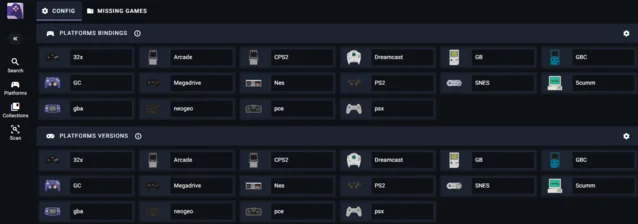
Once inside RomM, before scanning your game library, it’s a good idea to go to your account settings and choose library management. This helps ensure that all platforms are linked to the correct folders on your NAS. I encountered issues with metadata scraping when I didn’t do this, even though the games were imported correctly. You can map these in the config.yml file, but if you used the GitHub template, you’ll likely want to adjust this in the library management area.
Folder Structure Check
It’s also important to verify that the folder structure on your NAS meets the documentation’s requirements. ROM and BIOS files should be in separate directories, with each system having its own correctly named folder within those directories. Once again, the documentation is your best resource for this.
If everything is set up right, running a scan will start filling your library. In my experience, metadata matched about 90% of the files, with most mismatches due to incorrect file names. Thanks to the built-in search function, it was easy to manually match any missing titles.
Emulating Arcade Games
When emulating arcade games in the browser, you can choose between MAME 2003, Final Burn Neo, and Final Burn Alpha 1 or 2 for Arcade, Neo Geo, and CPS systems. I found Final Burn Neo to be the most reliable for loading games. Other consoles like NES, SNES, Genesis, and Game Boy functioned without any issues. RomM allows you to upload BIOS files for specific platforms when emulating games. However, for Neo Geo, I had to place the BIOS files into every ROM for it to work, which might not be ideal for everyone.
Save States and Handheld Support
Save states are consistent across browsers as long as you are logged into RomM with the same account, allowing you to switch devices during gameplay without any hassle.
RomM also supports custom operating systems for retro handheld devices. If you own a handheld that can run MustardOS, like the Anbernic RG35XX H (which is available on Amazon), you can connect to your RomM instance and download games wirelessly.
Future Updates
The developers are continually updating the software, promising features such as a console mode for a big screen TV, along with built-in PSP and DOS emulation, which will function right out of the box. While there are alternatives such as RetroAssembly that offer similar features, RomM still has a lot to explore and even more exciting updates on the horizon.
Source:
Link
Leave a Reply