
Tag: Edge

  • Goodbye Google: European Parliament picks Qwant as default search engine

    Goodbye Google: European Parliament picks Qwant as default search engine

    Key Takeaway

    – European Parliament switching Firefox/Edge default search from Google to Qwant
    – Framed as commitment to “digital sovereignty” amid EU push to reduce reliance on US tech
    – Qwant is developing its own search index with Ecosia (Staan), not just using Bing
    – MEPs and staff can still manually switch back to Google or any other engine
    – Many other dependencies (Windows, Office, hardware) remain unchanged


    European Parliament Switches to Qwant Search Engine

    Starting this Thursday, MEPs typing a query into the address bar of Firefox or Edge will no longer get Google results. The European Parliament is switching its default search engine to Qwant — a French rival that promises not to track users or collect personal data, according to an internal email reported by Euractiv.

    Symbolic Move Against US Tech Giants

    The move looks small but is symbolically loaded. Google controls roughly 90% of Europe’s search market, and EU institutions use US software heavily — Microsoft’s Office suite being one of the major ones among them. The Parliament is framing the swap as part of its commitment to “digital sovereignty,” and the timing is no accident too: it comes one day after the European Commission unveiled a whole package of proposals meant to loosen the bloc’s dependence on American tech giants.

    Qwant’s Search Index Development

    One of the most interesting wrinkles is Qwant itself. The company has long piggybacked on Microsoft’s Bing index to deliver results — hardly independence. But it is now co-developing its own index, dubbed Staan, alongside fellow European engine Ecosia. That probably explains the Parliament’s pick as being a bet on homegrown infrastructure, instead of a rebranded front end.

    No Mandatory Lockdown for Users

    It’s important to note that nobody is forced offline. MEPs can still switch their default back to Google or any other engine; Qwant is simply the out-of-the-box choice for the Parliament’s 720 lawmakers and thousands of staff.

    • Qwant does not track users or collect personal data
    • New search index called Staan is being co-developed with Ecosia
    • Parliament aims to reduce dependency on US tech infrastructure

    Remaining Dependencies on US Software

    Also, plenty of other dependencies — Windows, Office, foreign-built phones and email clients — are still firmly established.
    Sources
  • Microsoft Edge’s Copilot Mode: AI that Researches and Shops

    Microsoft Edge’s Copilot Mode: AI that Researches and Shops

    Key Takeaways

    1. Microsoft has launched Copilot Mode in the Edge browser for Windows and Mac, integrating AI assistance directly into the browsing experience.

    2. The AI operates in five modes: Search and Chat, Ask Copilot, Think Deeper, Research, and Action, with quick response times varying by mode.

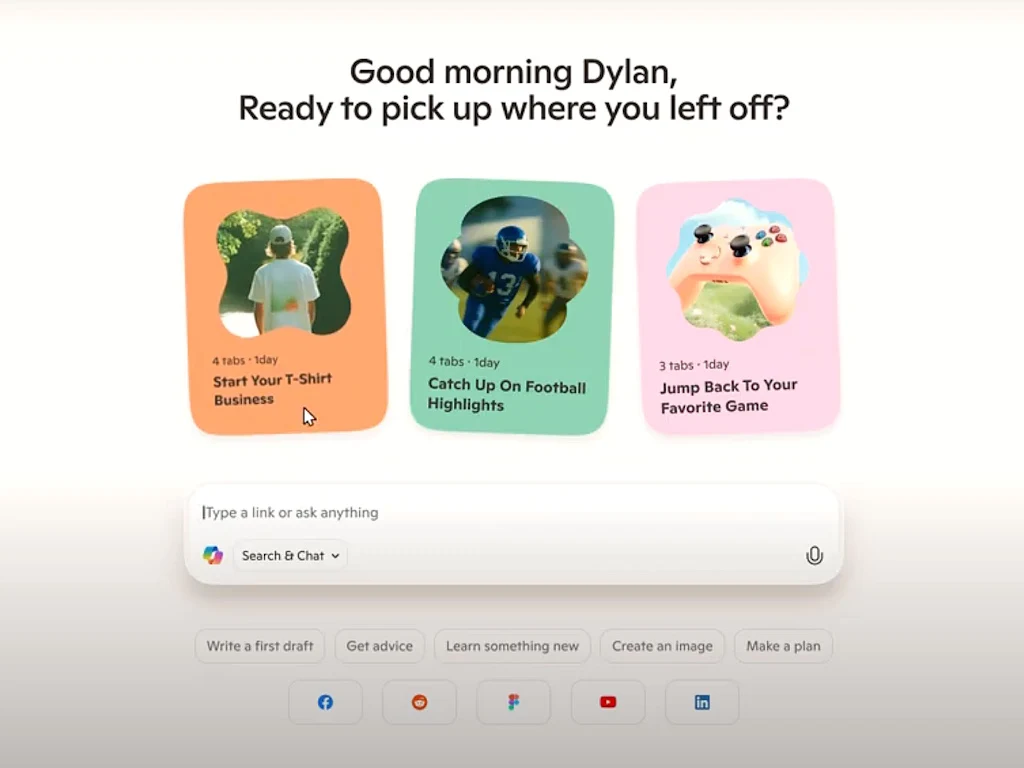
    3. In Search and Chat mode, the AI can analyze open tabs and provide tailored suggestions based on user activity.

    4. The Action mode allows the AI to perform tasks independently, while capturing screenshots and user data during the process.

    5. Initial tests revealed limitations, such as slow performance and difficulty with certain tasks, raising concerns about data privacy and responsibility for the AI’s actions.


    Microsoft has introduced a new feature called Copilot Mode in its Edge web browser for both Windows and Mac users. This experimental setting includes an AI that is built right into the browsing experience. Every time a user opens a new tab, a prompt window appears, giving them the chance to ask the AI for assistance. The AI can search the internet for information, observe user activity, and handle tasks independently to help with various online activities.

    AI Modes Available

    The AI operates in five distinct modes: Search and Chat, Ask Copilot (which gives quick answers in 2-3 seconds), Think Deeper (around 30 seconds), Research (approximately 10 minutes), and Action. Currently, these features are available for free when users log in with a Microsoft account, but this could change down the line.

    The Ask, Think, and Research modes function in a way similar to other well-known AI chatbots like ChatGPT. Users can either type or voice their queries, and the AI will search the web to provide answers.

    Understanding Search and Chat

    With the Search and Chat mode, the AI can view the content in all open tabs within Edge. This capability allows the AI to offer insights and suggestions based on the user’s tabs. For instance, if users are looking at various swimsuits, they can inquire what the AI thinks about their selections.

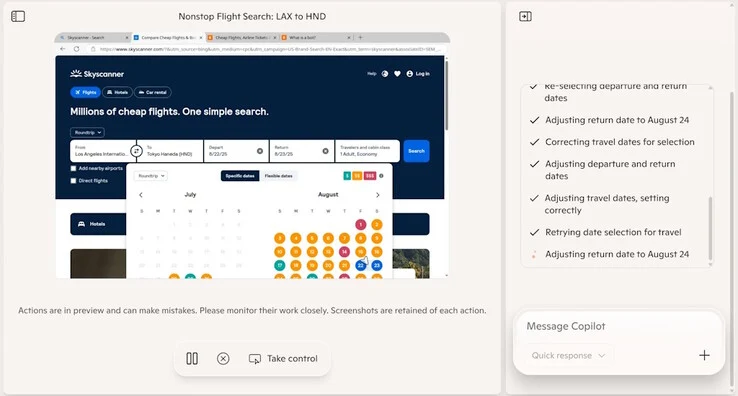
    In Action mode, Copilot acts like a personal assistant — it goes online, searches, engages with websites, and gathers information. Users will see the AI performing tasks in a virtualized browser environment, and they have the option to interrupt or take control at any time. It’s important for users to note that Copilot Mode captures screenshots of every step in Action mode and collects typed or spoken data during these interactive sessions. When personal history and credentials features are implemented in the future, the AI will also acquire this sensitive information as it works on tasks by itself.

    Limitations of the AI

    During initial tests, the AI struggled with some straightforward tasks, such as selecting a date range for flights, and its performance was quite slow in this experimental mode. There’s uncertainty about who would be held responsible for any unintended actions taken by the AI, like unauthorized credit card purchases.

    While Microsoft claims it adheres to data privacy protocols, there remains a risk that personal information could be exposed or compromised. Users who are concerned about potential AI risks might consider using sandboxed browsers without AI (like the one available on PortableApps.com) or even switching to Linux instead of Windows (which can be downloaded from Ubuntu, and there are guides to help with its usage).

    Source:
    Link


  • Misleading Microsoft Edge Uninstall Guide Removed After Backlash

    Misleading Microsoft Edge Uninstall Guide Removed After Backlash

    Key Takeaways

    1. Microsoft has removed guides from its support site, including one for installing Windows 11 on unsupported systems.
    2. The “How to Uninstall Microsoft Edge” page was misleading, focusing on criticizing Google Chrome rather than providing uninstall instructions.
    3. After public feedback, Microsoft removed the misleading Edge uninstall guide and replaced it with a page that offers more information on Edge.
    4. The updated page includes brief descriptions of Microsoft Edge’s latest features to discourage users from switching to Chrome.
    5. Uninstallation steps for Microsoft Edge differ based on user location, with specific methods for users in the EU and those outside it.


    Microsoft has been busy lately removing guides from its official support site. Recently, they took down a guide that instructed users on how to install Windows 11 on systems that aren’t supported. Now, they’ve also eliminated a page that claimed to be an uninstall guide for Edge.

    The Edge Uninstall Guide

    This support page was titled “How to Uninstall Microsoft Edge,” but it didn’t actually provide any real instructions for uninstalling the browser. Instead, it focused on criticizing Google Chrome while highlighting features that Edge offers but Chrome does not.

    After people pointed out the misleading nature of this uninstall guide, Microsoft removed it quietly. The previous link now leads to a different page that doesn’t pretend to provide uninstall instructions. While the title may no longer be misleading, it still doesn’t meet the search intent for those keywords.

    Updated Page Information

    The new page does include helpful links that aim to give users more information on Microsoft Edge. For instance, it features brief descriptions of the latest updates, which may help keep users from switching to Chrome.

    If you’re looking for actual steps on uninstalling Microsoft Edge, the process is quite straightforward. Users in the EU can follow these easy steps:

    Uninstallation Steps

    For individuals outside the EU, the uninstallation process involves a different method. Here’s one of the simple ways for users outside the EU:

    Source:
    Link