Tag: Acer Nitro V 17

  • Top NitroSense and PredatorSense Alternatives for Acer Users

    Top NitroSense and PredatorSense Alternatives for Acer Users

    Key Takeaways

    1. Lack of Alternatives: There are no complete Acer-specific substitutes for NitroSense or PredatorSense, making it hard for users to find suitable tools for performance and system management.

    2. User-Friendly Options: Fan Control is a user-friendly application that allows users to set fan curves based on temperature readings, providing some control over fan speed.

    3. Limitations on New Models: Newer Acer laptops restrict fan control at the BIOS or embedded controller level, preventing third-party applications from accessing necessary sensors.

    4. Custom Configuration Challenges: Creating custom configuration files for tools like NotebookFanControl is difficult due to Acer’s restrictions and the lack of available profiles for newer models.

    5. Partial Solutions: While tools like MSI Afterburner and NotebookFanControl can manage some aspects of performance, they do not fully replace Acer’s proprietary software for comprehensive control.


    We’ve had it pretty good with G-Helper, a fantastic open-source app discussed in the last part of this series. Made and updated by a single developer, it’s so sleek, straightforward, and effective that it made us forget about Asus’ official software, Armoury Crate and MyAsus, along with their inbuilt tracking and advertising features.

    Finding Alternatives for Acer

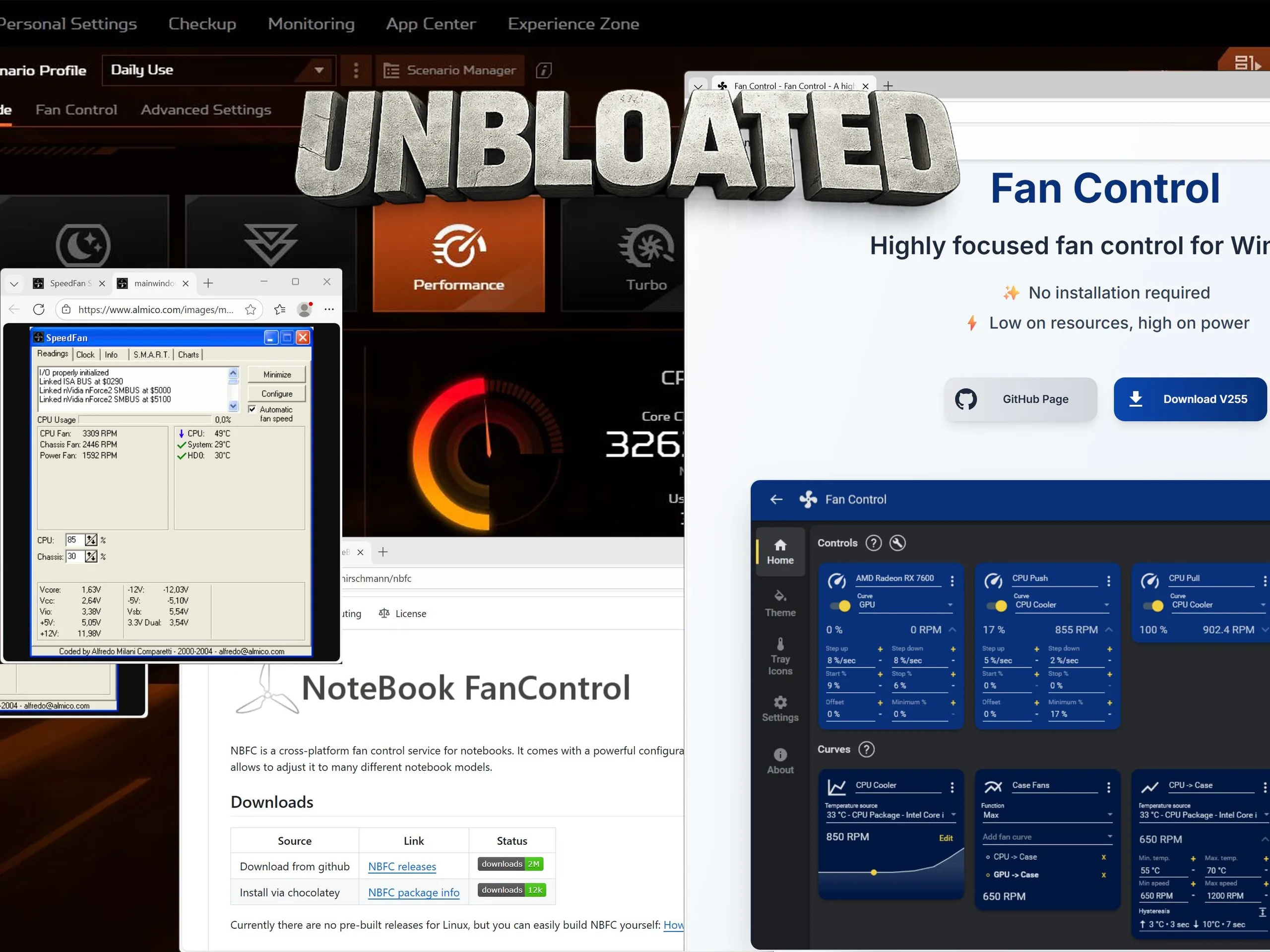
    Looking for a similar tool for Acer laptops is proving to be quite the challenge. There doesn’t seem to be a complete Acer-specific substitute for NitroSense or PredatorSense, which includes options for performance profiles and system management. Instead, users are often directed to general fan control apps like NotebookFanControl (Github) or another program simply called Fan Control (official website).

    User-Friendly Options

    Among these, Fan Control is the easier one to use. Its main advantage is the capacity to set up fan curves based on temperature readings—and even merge multiple sensors into a singular control point.

    For instance, you might set a rule like “increase fan speed to 60% when the temperature goes over 70 °C” and utilize both CPU and GPU temperature sensors (or other ones) as triggers. The component that hits the temperature limit first will initiate the pre-established fan reaction.

    Limitations on New Acer Laptops

    This method works nicely on desktop PCs—and might work on older Acer laptops too. However, on newer Acer models, the situation is quite different.

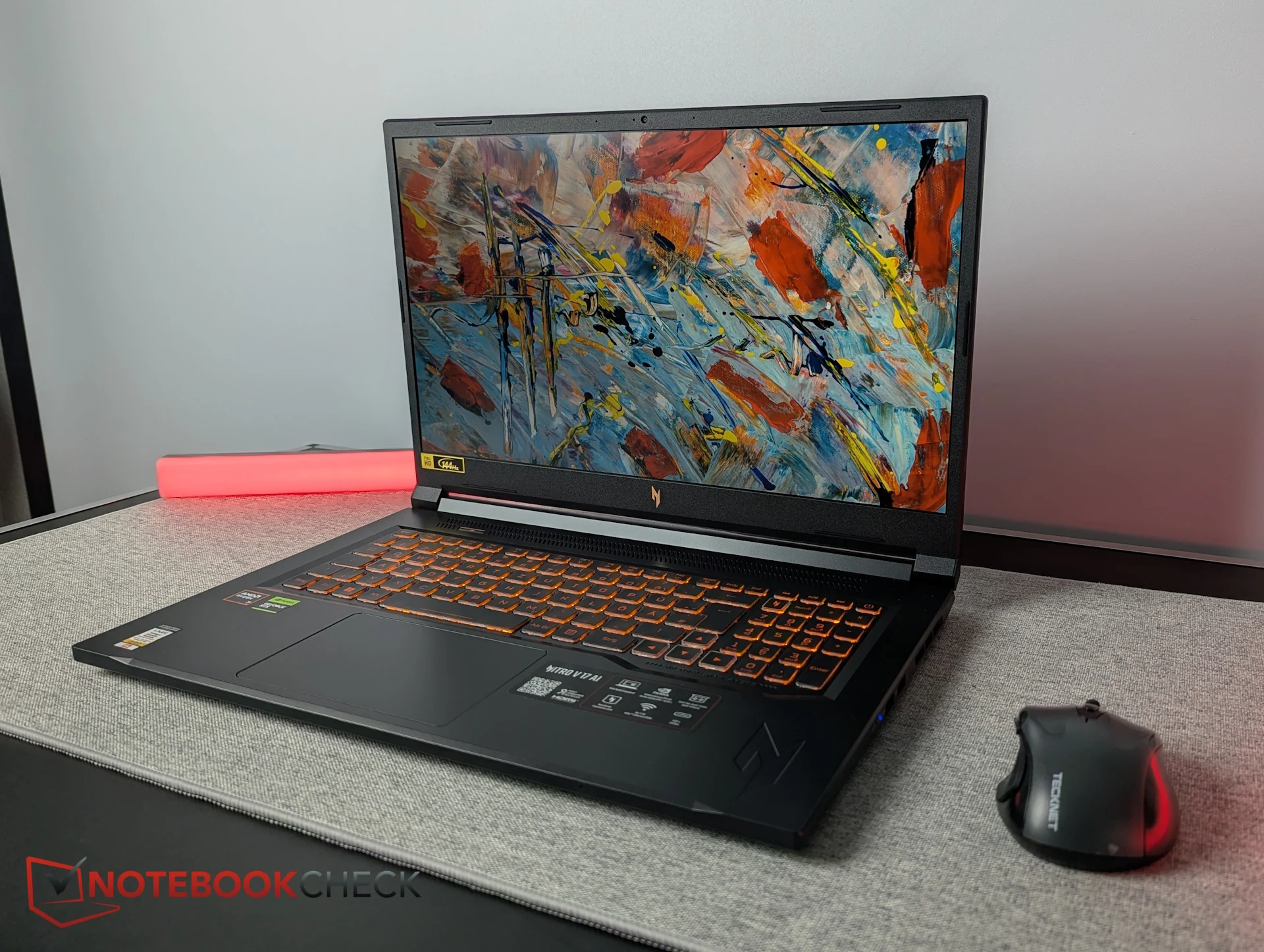
    On our Acer Nitro V 17 (review) and other recent Acer gaming laptops, Acer restricts fan control at the BIOS or embedded controller (EC) level. Consequently, firmware-controlled fans can only be accessed through NitroSense or PredatorSense. Third-party applications cannot read or manage the required sensors directly.

    NotebookFanControl (NBFC) doesn’t function right away. Instead, it needs a special configuration file—usually community-made profiles that are designed for specific laptop models. The issue here is that most available config files are for older devices, while profiles for the latest laptops are extremely limited.

    Creating Custom Configurations

    Making your own config file is a tricky task, even with the help of the Github wiki. It involves checking specific registers, which becomes significantly harder—or even impossible—due to Acer’s EC restrictions.

    Another popular universal fan control tool, SpeedFan, faces the same challenges on modern Acer laptops.

    This leaves MSI Afterburner as a less-than-ideal alternative. It’s less than ideal because it only manages GPU settings, not the CPU. Nevertheless, the 43 MB application allows users to set profiles for GPU clock speeds and fan operations, giving at least a bit of control over performance and thermal management.

    For Acer desktop PCs, NotebookFanControl and Fan Control can act as partial substitutes. While they don’t come close to matching G-Helper for Asus machines in terms of polish, they can still handle a lot of basic tasks.

    Sadly, Acer locks fan control on the majority of its current gaming laptops at the BIOS or embedded controller level. Therefore, to our knowledge, there isn’t a solid open-source alternative to NitroSense or PredatorSense on Acer laptops today. MSI Afterburner can manage GPU settings to some degree, but it doesn’t adequately replace Acer’s proprietary control software.

    Source:
    Link


  • Acer Nitro V 17 Display Issues: Too Dark and Slow

    Acer Nitro V 17 Display Issues: Too Dark and Slow

    Key Takeaways

    1. Performance Trade-offs: The Acer Nitro V 17 operates quietly and is energy-efficient, but this results in a slight decrease in gaming performance, which is acceptable for a budget device.

    2. Display Limitations: The Full HD IPS screen is dim at 238 nits and lacks vibrancy, making it unsuitable for outdoor use and resulting in washed-out colors during regular activities.

    3. Poor Response Times: The screen’s response times range from 30 to 42 milliseconds, leading to sluggish motion and noticeable ghosting, failing to meet basic gaming standards.

    4. Comparison with Competitors: Other budget laptops, like the Lenovo LOQ 17 and Omen 16, offer better display performance, including higher brightness and faster response times.

    5. Importance of Display Quality: For users relying on a single device for gaming and daily tasks, a subpar display can be a significant drawback, highlighting the need for manufacturers to improve display quality in budget laptops.


    We just tried out the Acer Nitro V 17, a gaming laptop with a 17-inch screen. Along with the Lenovo LOQ 17 and the Omen 16, it’s one of the cheapest laptops now on the market featuring an NVIDIA GeForce RTX 5070. This makes the Nitro V 17 seem like a good choice on paper.

    Performance Insights

    In real-world use, the laptop shows some positive aspects. It operates quite quietly and is energy-efficient, but this does lead to a small dip in gaming performance. For a budget device, this compromise is acceptable.

    Display Flaws

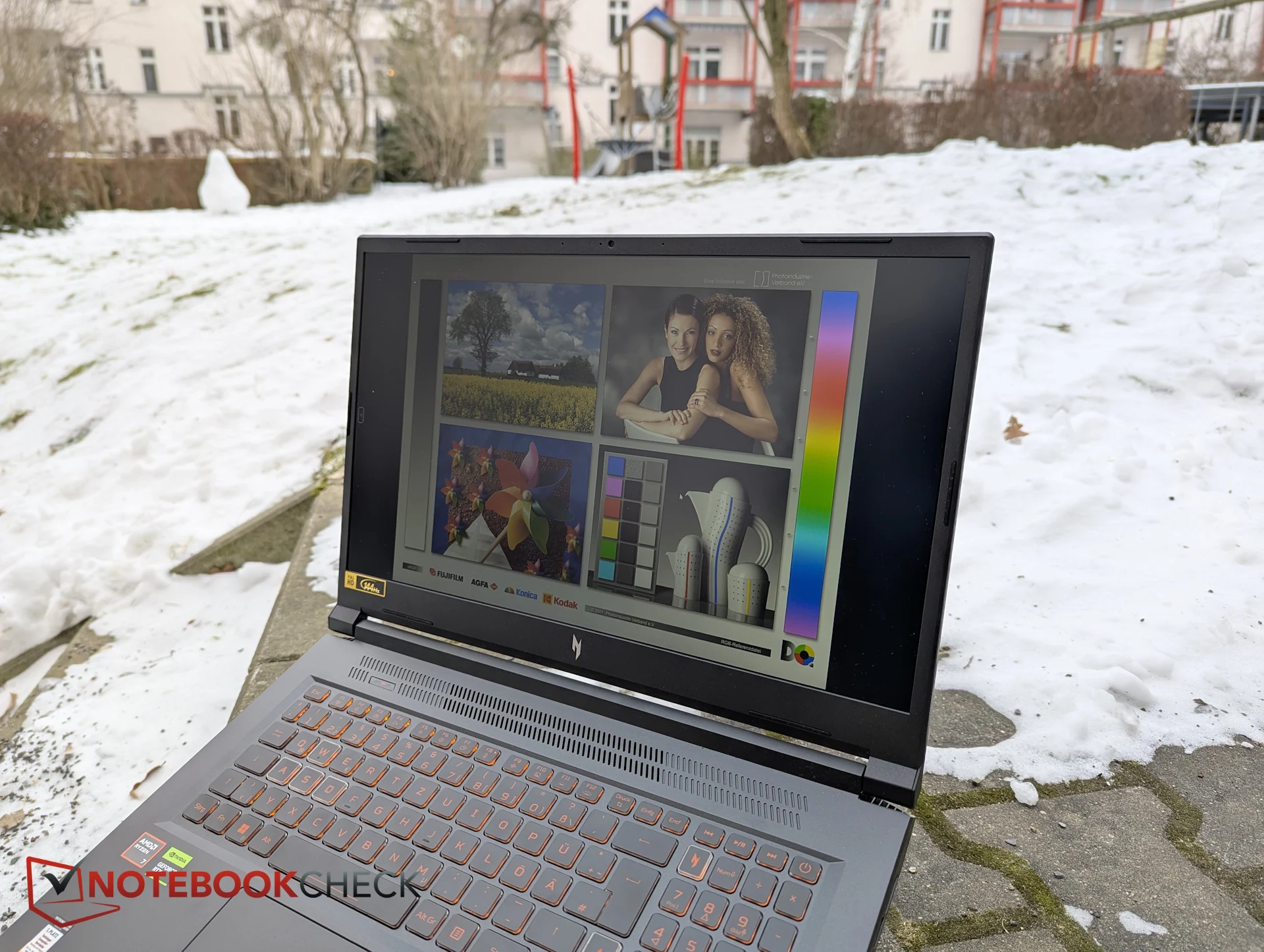
    However, Acer seems to have overdone it with the display quality. The Full HD IPS screen only reaches a brightness of around 238 nits, which is clearly not enough for outdoor usage. Even when used indoors, the visuals often appear dull and lack vibrancy. This brightness level is noticeably low, even by budget standards.

    Additionally, the display does not adequately cover the sRGB color space. Colors seem washed out, and images lack richness and vibrancy. While this might be okay for casual gaming, the poor color quality becomes very noticeable during regular activities like browsing the web, working, or watching videos.

    Response Times

    Another significant issue is the response times. With readings between 30 and 42 milliseconds, the screen fails to meet basic gaming laptop standards. Motion looks sluggish, and ghosting is apparent—problems that are hard to overlook, even for a budget model.

    When comparing with other laptops in the same price range, it’s evident that there are better options available. The Lenovo LOQ 17, for instance, also sports a Full HD display but achieves around 300 nits of brightness, covers the sRGB color space well, and provides response times of 10 to 16 milliseconds, which are much faster.

    The Omen 16 takes a different route with its 1200p screen in a 16:10 aspect ratio, also providing around 300 nits of brightness. Although its color coverage is similarly limited, its response times are about half as slow as those of the Nitro V 17.

    Budget Considerations

    In direct comparisons, the Nitro V 17’s display clearly ranks at the lower end of the budget category. Particularly in this segment, a laptop often serves as the sole computer a user has. It’s more than just a gaming device; it’s also used for work, studying, and watching media. Those with limited finances usually can’t afford a second machine.

    From my own experience—going back to my student days—it’s clear that when one device has to do it all, the quality of the display becomes very important. A consistently subpar screen can be an ongoing annoyance.

    Manufacturers should be cautious not to skimp too much on display quality, especially for entry-level products. An OLED or Mini-LED panel isn’t necessary, but users deserve a screen that they enjoy viewing each day.

    This is precisely where the Acer Nitro V 17 could fall behind rivals like the Lenovo LOQ 17, the Omen 16, or even the Katana 17. Despite its quiet and efficient performance, the display remains a significant drawback—a factor that may deter many potential buyers.


  • Acer Nitro V 17: RTX 5070 Gaming with 56% Lower Power Use

    Acer Nitro V 17: RTX 5070 Gaming with 56% Lower Power Use

    Key Takeaways

    1. The Acer Nitro V 17 is one of the most affordable 17-inch gaming laptops featuring an Nvidia GeForce RTX 5070.
    2. Key strengths include low energy consumption and quiet operation compared to other budget gaming laptops.
    3. In Performance mode, the Nitro V 17 shows only a slight performance boost in Turbo mode, emphasizing efficiency over maximum power.
    4. The laptop targets budget-minded gamers who prioritize reduced noise and energy efficiency rather than peak frame rates.
    5. Understanding the Nitro V 17’s pros and cons is essential for deciding if it’s the right gaming laptop choice.


    The Acer Nitro V 17 is one of the cheapest gaming laptops available that features an Nvidia GeForce RTX 5070, especially in the 17-inch category, as we have pointed out in this article. Typically, with budget gaming laptops, brands tend to try to match the performance of pricier rivals while cutting expenses in other areas.

    Key Strengths

    While the Nitro V 17 does have its compromises, its main advantages are surprisingly not focused on raw power. When we compare the Nitro V 17 with numerous other budget gaming laptops, it becomes clear that Acer’s machine is notable for its low energy consumption and quiet functioning.

    Take for instance Cyberpunk 2077 at Ultra settings: the similarly priced Lenovo LOQ 17 runs about five percent faster but is also 17 percent noisier and uses 56 percent more power. A similar trend can be seen with the Asus TUF Gaming A18. Nowadays, more budget-oriented gaming laptops are focusing on efficiency, lower noise, and reduced power usage rather than just maximum performance.

    Performance Mode Insights

    The data we collected was under the Performance mode in Acer’s NitroSense control center. Above this, there’s only the Turbo mode, which raises fan noise from approximately 47 dB to just over 50 dB—a pretty standard level for this class of performance. Even in Cyberpunk 2077, Turbo mode only offers a slight boost in performance of about 1.14 percent.

    The choice to not chase maximum performance is, thus, a deliberate and fairly daring decision. It makes sense since performance enthusiasts usually lean towards much pricier laptop options. For gamers who are budget-minded, peak frame rates may matter less than the common drawbacks of high performance in this category, like increased noise, higher heat, and more power consumption.

    Final Thoughts

    These insights underline the main advantages of the Nitro V 17: efficiency, reduced noise levels, and a competitive price. Essentially, the Acer Nitro V 17 AI is designed for gamers who are looking for quieter, more energy-efficient gaming rather than merely achieving the highest frame rates.

    Deciding if this RTX 5070 gaming laptop is the right pick ultimately hinges on a clear understanding of its pros and cons. For a comprehensive analysis, along with our final thoughts and suggestions, be sure to check out our complete review of the Acer Nitro V 17 AI.