
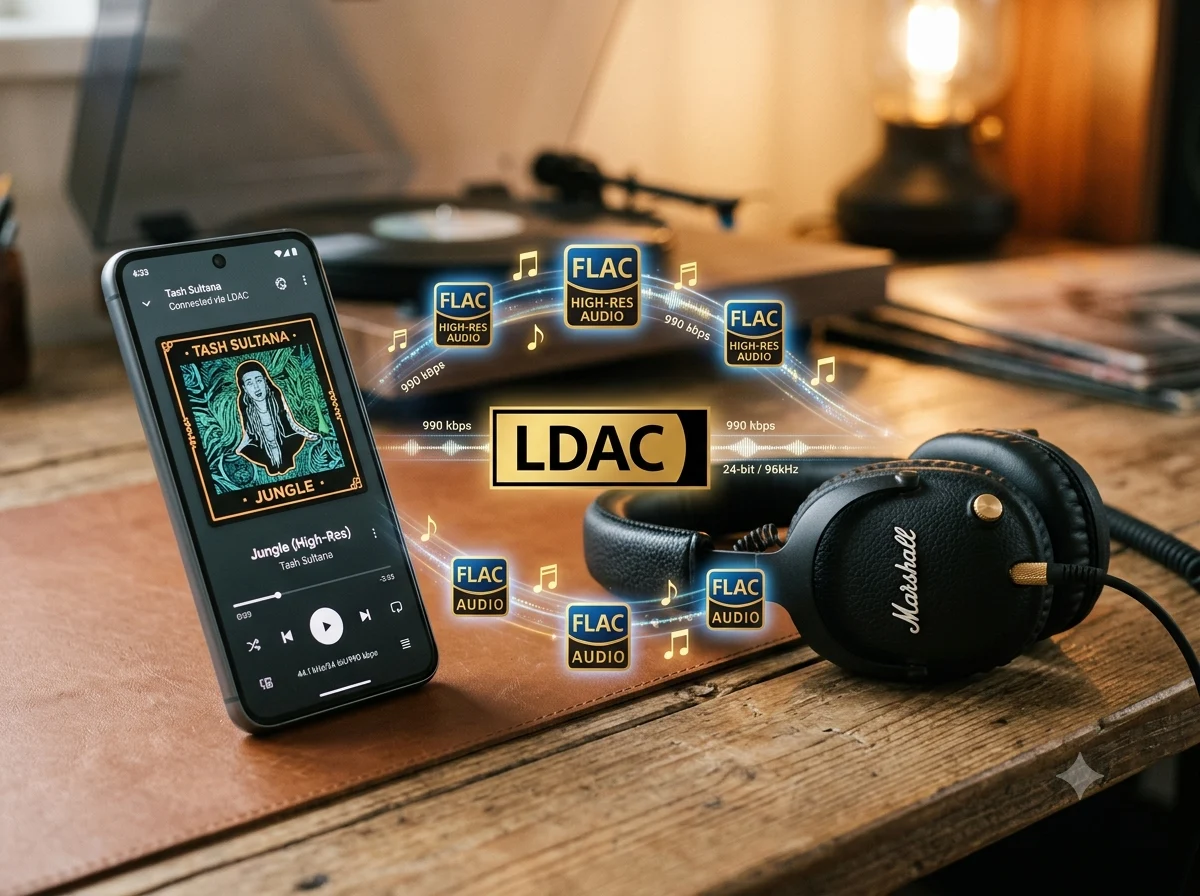
– LDAC is Sony’s high-resolution Bluetooth codec that transmits more data than standard codecs like SBC/AAC, reducing compression and data loss.
– To use LDAC, you need three components: LDAC-compatible headphones, an Android smartphone, and LDAC-capable music files.
– Enable LDAC via Android’s Developer Options by selecting it under “Bluetooth Audio Codec” and adjusting “Audio Quality” to “Optimized for Audio Quality.”
– The highest 990 kbps mode is unstable in poor wireless environments; phones often fall back to 660 or 330 kbps automatically.
– LDAC is a refinement, not a game changer—improvements in clarity and soundstage are subtle and depend on headphone quality and source material.
So, first off, what exactly is LDAC? It is Sony’s proprietary Bluetooth codec designed for high-resolution audio, transmitting way more data than standard stuff like SBC and AAC. This means your audio files undergo less compression, which results in less data loss. By shoving substantially more data over Bluetooth, LDAC can theoretically give you better audio quality, but its not a magic bullet.
How it affects sound quality
In the best-case scenario, LDAC provides greater detail retrieval in your music—especially when using high-resolution FLAC files—including cleaner highs and slightly improved spatial imaging. However, Bluetooth audio remains compressed, so the effect has its limits. In practice, the sound quality difference between LDAC and AAC is actually considerably smaller then the difference between two completly different headphone models.
Using LDAC on the Marshall Milton
The new Marshall Milton (our review), for example, supports not only the standard codecs mention above but also the higher-resolution LDAC codec. So if you’ve gone out and bought headphones with LDAC support, how do you actually get it to work? Three conditions must be satisfied: you need LDAC-compatible headphones, an Android smartphone, and LDAC-capable music. On the Marshall Milton, LDAC activates automatically once the headphones connect to your smartphone via Bluetooth. To double-check that it’s enabled, you can dive into the Android settings.
Enabling LDAC in developer options
Open Android’s Developer Options (go to Settings, then About phone, and tap “Build number” seven times). Scroll on down to Bluetooth Audio Codec and then select LDAC. If the headphones are not connected, the option will be grayed out and completely unavailable. Under “Audio Quality,” you can also pick “Best Effort / Optimized for Audio Quality” if you want to get the most out of it.
Bitrate stability in real worlds
In practice, the 990 kbps mode remains stable only in excellent wireless environments, and many smartphones automatically fall back to 660 or 330 kbps instead. This behavior can also be adjusted in the settings if you want to mess with it. If you manually select the highest quality mode and the connection becomes unstable, Android will automatically switch to the next lower bitrate to keep things from cutting out.
The bottom line on LDAC
LDAC is not a game changer but rather a refinement codec. If your headphones feature high-quality drivers and the other requirements are met, it can extract a little more clarity and soundstage from your music. However, Bluetooth connections still involve significant compression, so the improvement is relatively subtle. And if the source material isn’t high quality or the headphones themselves aren’t capable enough, your unlikely to notice much of a difference at all.
Leave a Reply