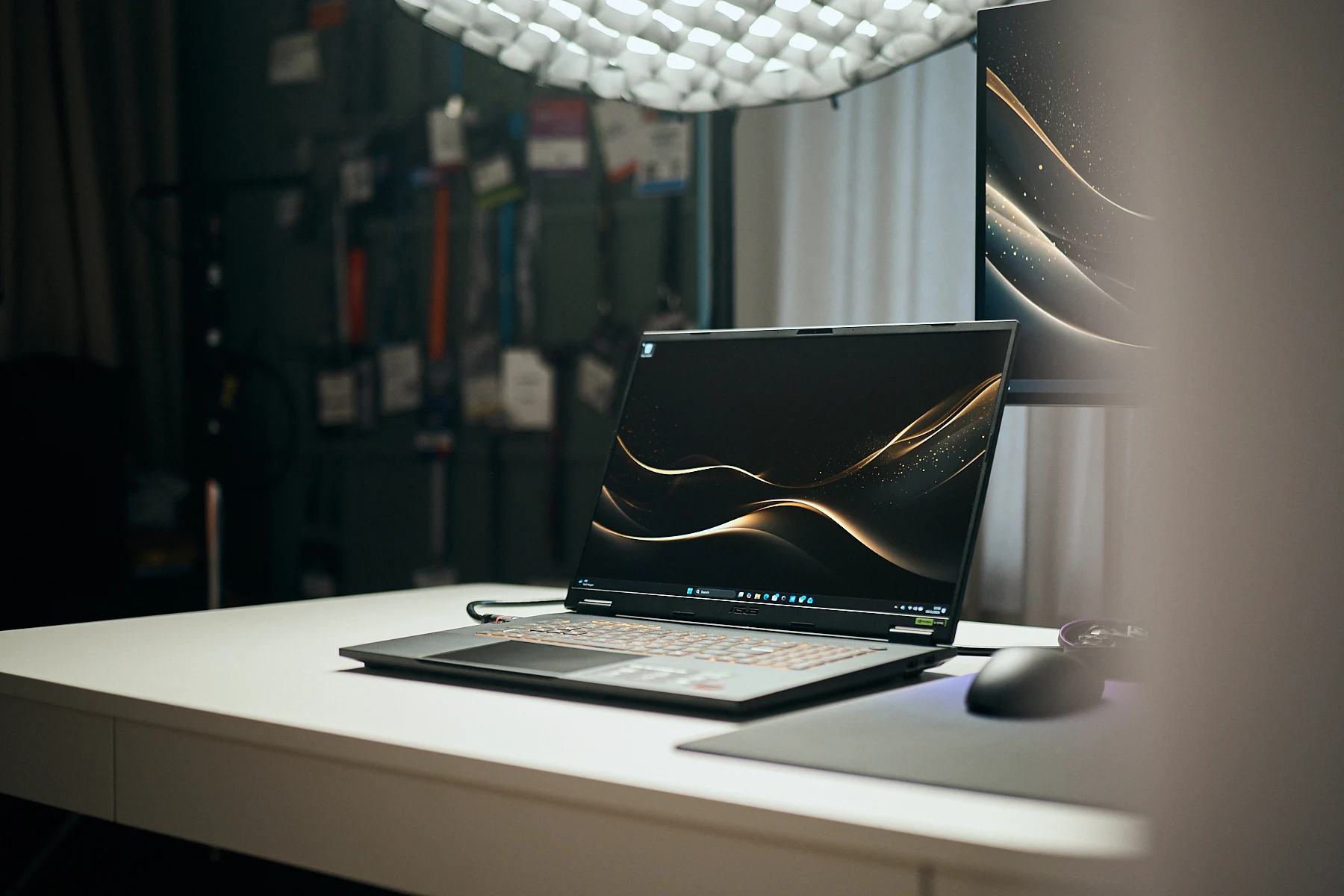
Tag: Asus TUF Gaming A18

  • Capture Screenshots Efficiently with This Open-Source Tool for Testers

    Capture Screenshots Efficiently with This Open-Source Tool for Testers

    Key Takeaways

    1. Greenshot is an open-source software that saves time and is easy to use for capturing screenshots.
    2. It is particularly useful for laptop testers, who rely on screenshots for reviews and performance benchmarks.
    3. Greenshot can be downloaded for free on Windows, while Mac users pay $1.99; it can also be installed quickly via the terminal.
    4. After installation, users can customize settings in the Preferences panel to enhance functionality and reduce notifications.
    5. Greenshot has limitations with in-game screenshots, as some games block it or cause performance issues, prompting users to use alternative tools.


    The open-source software Greenshot is on all my personal and review devices because it saves a lot of time and is super easy to work with. At home, I use it to keep track of important information—stuff like subscription details, QR codes, and much more.

    Screenshots in Reviews

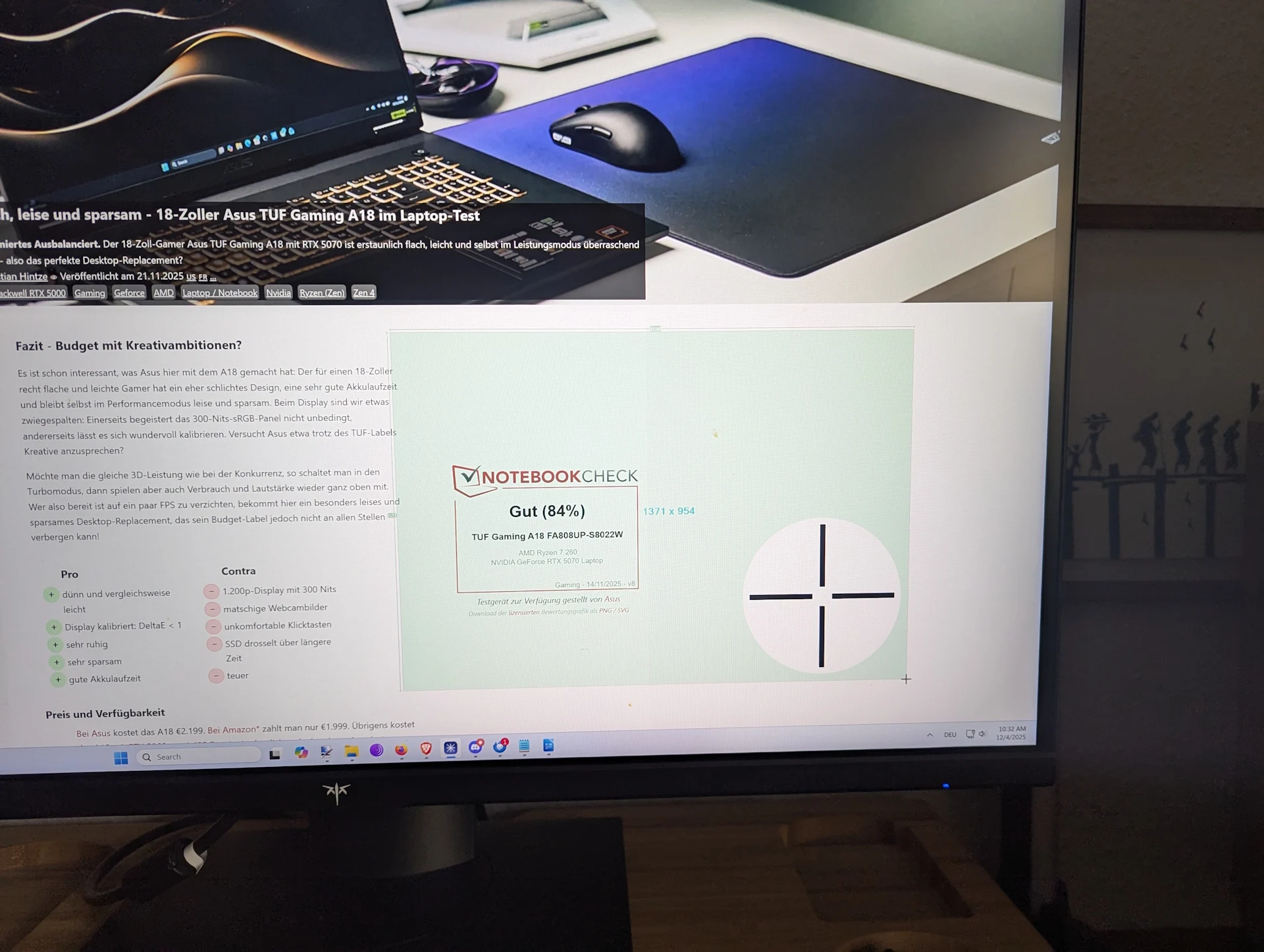
    In my role as a laptop tester, I depend on various screenshots for my reviews. These include images of CPU-Z tabs, PCMark 10 results, 3DMark benchmarks, along with our YouTube and latency tests, plus SSD benchmarks such as CrystalDiskMark and AS SSD, to name a few. A great example is my review of the Asus TUF Gaming A18, where all the screenshots were taken using Greenshot.

    Downloading Greenshot

    There are a few options to download it. If you like the traditional way, you can go to the download section on the official website. The Windows version is free, while Mac users need to pay $1.99. Another choice is the official Github page—just look for “Releases” on the right for the download.

    The fastest way, though, is through the terminal. It might sound a bit scary, but it has become my quickest method: open CMD or PowerShell from the Start menu search and type:

    “`
    winget install greenshot.greenshot
    “`

    And that’s all it takes—Greenshot installs automatically without needing to visit a website or manually download anything.

    Setting Up Greenshot

    After I install it, I right-click the Greenshot icon in the taskbar (double-clicking opens the storage folder) and go to the Preferences panel. Then, I adjust these settings:

    With these settings in place, Greenshot operates quietly in the background and performs perfectly. I can even disable the notification that shows up when a screenshot is taken—Greenshot continues to capture everything reliably.

    Limitations with Gaming

    The only notable exception is when it comes to in-game screenshots. While taking a full-screen shot usually works fine, some games completely block Greenshot, and taking a screenshot might slow down performance momentarily. For gaming, I usually rely on the built-in tools, the GPU driver (Nvidia), or the gaming platforms (like Steam, Ubisoft Connect, etc.).

    Source:
    Link


  • Affordable Asus TUF Gaming A18 Laptop for Creative Professionals

    Affordable Asus TUF Gaming A18 Laptop for Creative Professionals

    Key Takeaways

    1. Focus on Efficiency: The Asus TUF Gaming A18 prioritizes quiet and efficient operation over maximum performance, making it lighter and thinner than competitors like the Razer Blade 18.

    2. Shift in Target Audience: Asus appears to target both gamers and creative users, moving away from flashy designs to a more minimalistic approach that appeals to a wider range of professionals.

    3. Specifications and Performance: Despite being an 18-inch laptop, it offers impressive battery life and a manual performance mode that allows users to adjust settings for better performance when needed.

    4. Display Quality: The display is accurate after calibration but has limitations, including a narrow color gamut and a maximum brightness of 300 nits, which may not satisfy creative professionals.

    5. Compromises to Consider: The A18 has several drawbacks, including a low-quality webcam, a subpar touchpad, slower SSD performance, and no SD card reader, but still provides good value for budget-conscious creatives.


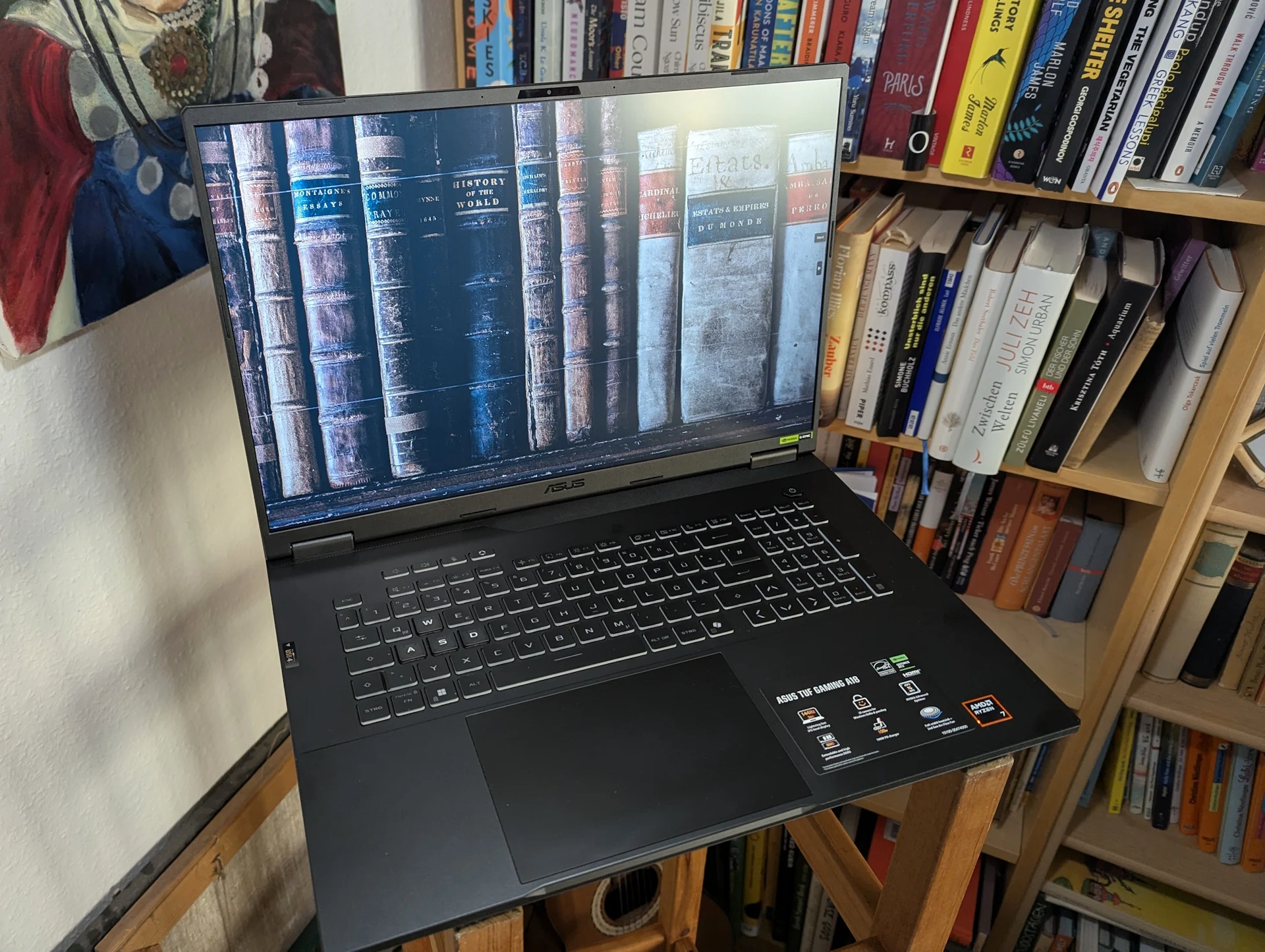
    We recently evaluated the Asus TUF Gaming A18. With the TUF label, we were expecting an 18-inch, bulky desktop replacement aimed at gamers on a budget. Our hope was to find reliable gaming performance along with the usual budget-friendly trade-offs. However, the A18 surprised us in several aspects.

    Focus on Efficiency

    Asus emphasizes quiet and efficient operation in its default performance settings instead of just focusing on high performance—something we will discuss more in-depth in this article. Additionally, the TUF Gaming A18 is thinner than the Razer Blade 18 and is relatively light for an 18-inch gaming laptop.

    A Shift in Target Audience

    During our testing, we began to question whether Asus is aiming to attract creative users as well. Typically, laptops in this price range are more expensive, while budget-friendly options often rely on flashy LED designs and bulky builds.

    The market is changing: more and more companies are marketing their high-end gaming laptops to creative professionals too. The trend is moving away from excessive RGB lighting to simpler, more elegant designs that can cater to both gamers and creatives. Within the budget category, there are still few alternatives specifically for creative tasks, making this an intriguing segment.

    Specifications and Performance

    Now, regarding some of the specifications of the A18: Even though it is an 18-inch laptop, it remains surprisingly slim and relatively lightweight for its size. Additionally, it offers impressive battery life for its price range. The design is quite minimalistic. Its default performance mode promotes quiet and efficient operation instead of maximum performance. Only when switched to the louder Turbo mode does the A18 compete with others in terms of performance. There’s also a manual mode that allows users to adjust TDP, PL values, and more.

    Display Quality

    The display is decent, but it may not be ideal for creative tasks. On the upside, after manual calibration, we managed to bring down the deviations (DeltaE values) in both grayscale and color reproduction to below 1, which is quite remarkable. However, the downside is the panel only covers the sRGB color space; creatives might prefer a wider color gamut. Brightness is capped at 300 nits, and the resolution is only 1,920 × 1,200. Nevertheless, within its supported color space, the accuracy remains excellent post-calibration. You can download our calibrated ICC profile for free in the “Display” section of the complete review.

    Compromises to Consider

    A budget laptop can’t shine in every area, and the A18 has its drawbacks beyond the subpar display. The webcam only provides Full HD quality and produces somewhat blurry images, although the color accuracy is fair. We were also not impressed with the stiff but mushy-feeling buttons on the touchpad. Additionally, the SSD is not particularly fast and experiences thermal throttling under continuous load. There is no SD card reader available.

    Whether by design or coincidence, Asus has created a device that could appeal to budget-conscious creatives—provided they are okay with some limitations. In exchange, they receive a relatively slim and lightweight 18-inch laptop featuring strong performance with its RTX 5070 while maintaining a quiet and efficient operation.

    Price Reduction

    The great news is that Asus has significantly decreased the price since our review, at least in Germany. The A18 initially debuted at €2,199, but it is now offered for €1,799 on Amazon.de. On Amazon.com, you will still need to pay $1,989.

    Source:
    Link


  • Asus TUF Gaming A18: Is Aggressive Power Saving a Good Choice?

    Asus TUF Gaming A18: Is Aggressive Power Saving a Good Choice?

    Key Takeaways

    1. Testing Consistency: Fair evaluation of gaming laptops requires testing under similar performance conditions, despite changes in manufacturer control-center apps.

    2. Variability in Performance Modes: Performance modes across different brands and even within the same brand can yield inconsistent results, complicating comparative testing.

    3. Impact of Turbo Mode: Some laptops, like the Asus TUF Gaming A18, show significant performance boosts in Turbo mode, highlighting the variability in how different modes are optimized.

    4. Trade-offs in Performance Settings: The A18’s Performance mode offers quieter operation and better energy efficiency, albeit at the cost of lower gaming performance compared to competitors.

    5. Importance of Comprehensive Reviews: It’s essential to read full reviews to understand all performance settings and their implications, as scoring may only reflect one mode.


    To evaluate (gaming) laptops in a fair way, we make it a point to test each device under similar performance conditions. Back when manufacturers did not have control-center apps, this process was simpler—we could depend on Windows’ power modes (Energy Efficient, Balanced, Performance).

    Changes in Testing Procedures

    When these control centers were first introduced, most brands retained Windows’ naming systems and only made slight adjustments to the settings. However, this is no longer the case today, creating more challenges for comparative testing.

    A Performance mode on device A from brand X often doesn’t perform the same as the similarly named mode on device M from brand Y. Even laptops from the same brand can show differences, despite sharing identical settings with the same labels. For instance, with the 2025 Asus ROG Strix G18, we discovered that “both GPU and gaming performance in Turbo mode were not actually better than in Performance mode.”

    Performance Variations

    In contrast, the recently evaluated Asus TUF Gaming A18 shows a different story. In this case, GPU performance increases noticeably when Turbo mode is activated—enough to allow the laptop to compete with other models only when Turbo is in use.

    This also indicates that the A18’s so-called “Performance” mode provides gaming performance that is significantly lower than that of the G18 or other competitors. However, the A18 operates much quieter and is far more energy-efficient in this mode—something that our scoring system takes into account. Losing a few points in 3D performance leads to much higher ratings in temperature, noise, and power consumption.

    Assessing the Performance Modes

    One could argue that the A18’s Performance mode is merely a (better) Balanced mode with a new name—and that Turbo should have been regarded as the real high-performance setting. After all, the A18 does not even have a Balanced mode. Yet as reviewers, this isn’t clear at the beginning; it only becomes apparent during testing. More importantly, the mode is well-optimized: performance dips are only slight, while improvements in other aspects are quite significant.

    So, did Asus “cheat” by eliminating the Balanced mode or simply rebranding it as “Performance”? Or has the company finally developed a well-optimized performance preset that sacrifices just a few frames for much lower noise and power consumption? It’s up for each reader to determine—our benchmarks and data related to specific modes can help clarify this matter.

    Conclusion

    Yes—most likely. Our scoring system takes into account results from only one mode. That’s why it’s crucial to read the complete review (Asus TUF Gaming A18 review), where we elaborate on all performance settings, not merely the one used for scoring.